Getting Started
Fast is designed to make scoring your archery shoots quick and effortless. It works entirely offline on your phone, so you can use it at any range without needing internet.
1. Open Fast and tap the round selector
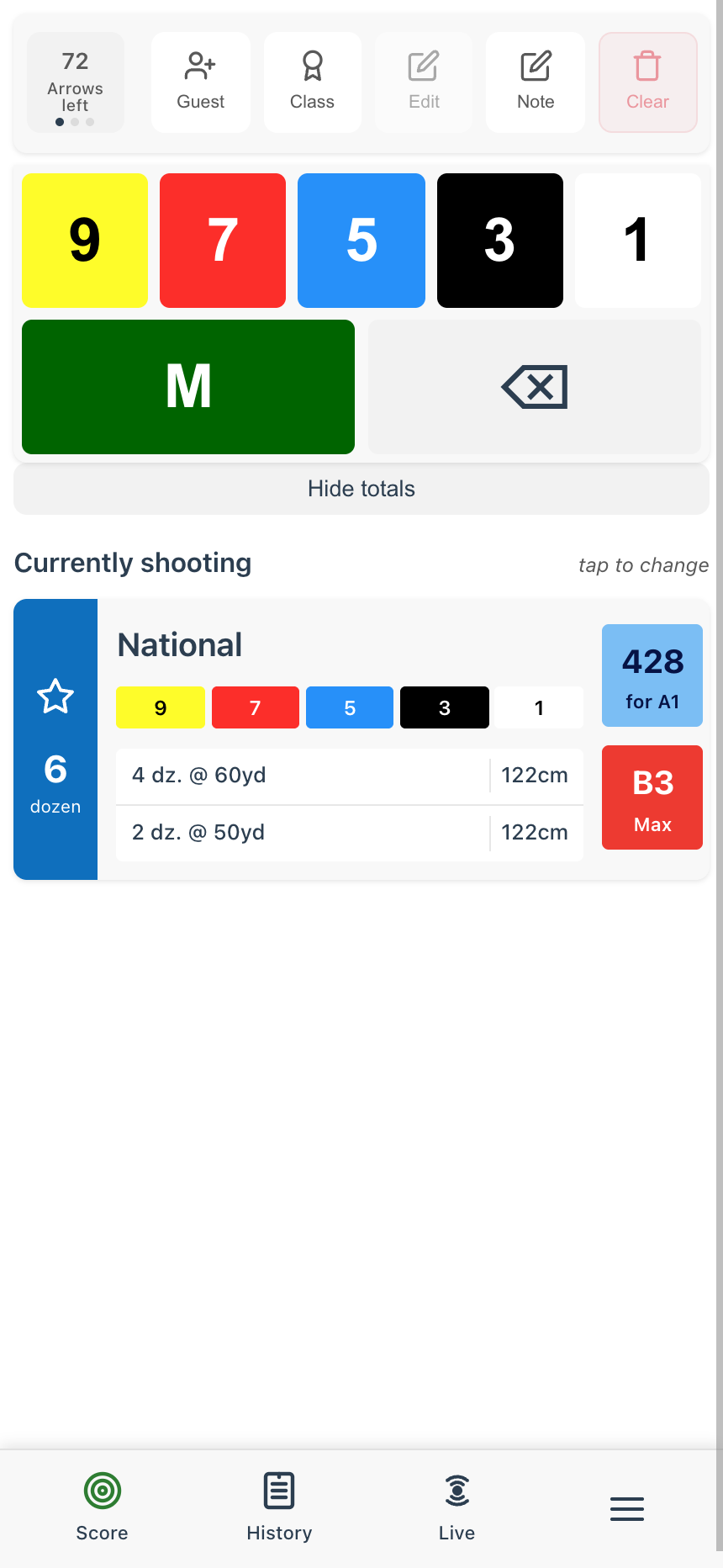
When you first open Fast, you'll see the score card. Tap the round card at the bottom (it says "tap to change") to choose the round you want to shoot.
2. Fill in your details
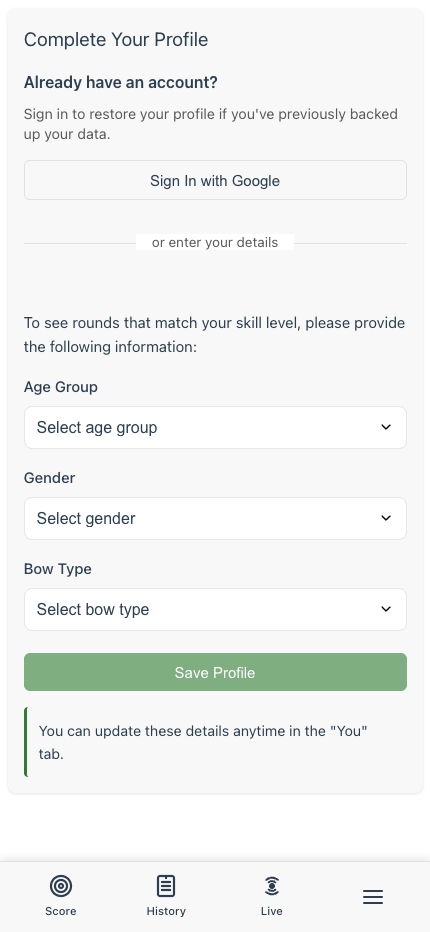
The first time you do this, Fast will ask you to complete a quick profile. Select your Age Group, Gender, and Bow Type. If you already know your classifications, pick those too so Fast can find more appropriate rounds for you.
You'll also see the option to Sign In with Google. This is recommended as it backs up your data and lets you sync across devices, but it's not required. You can always come back and sign in later via the Profile page.
3. Choose your round
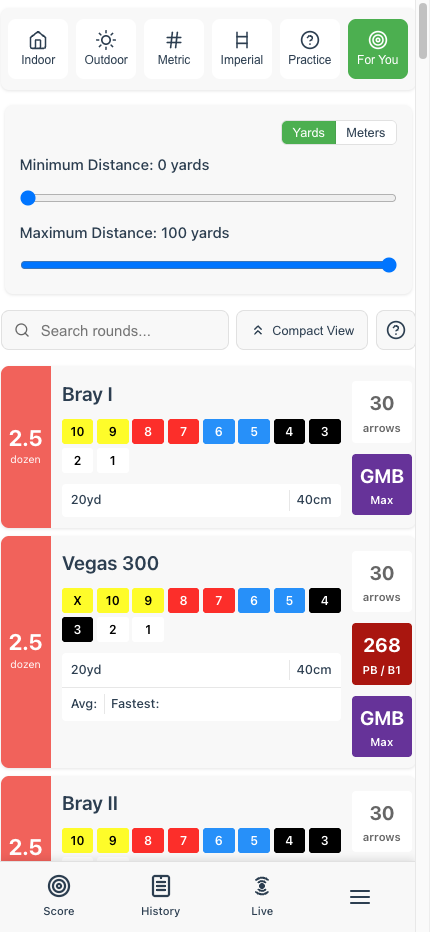
After saving your profile, you'll see the round selector with filters and a search bar. Find the round you want to shoot and tap it. For more detailed instructions on finding rounds, see Choosing a Round.
4. Start shooting!
Once you've selected a round, you're taken back to the score card, ready to go. Tap the score buttons to record each arrow as you shoot.
5. Save your shoot
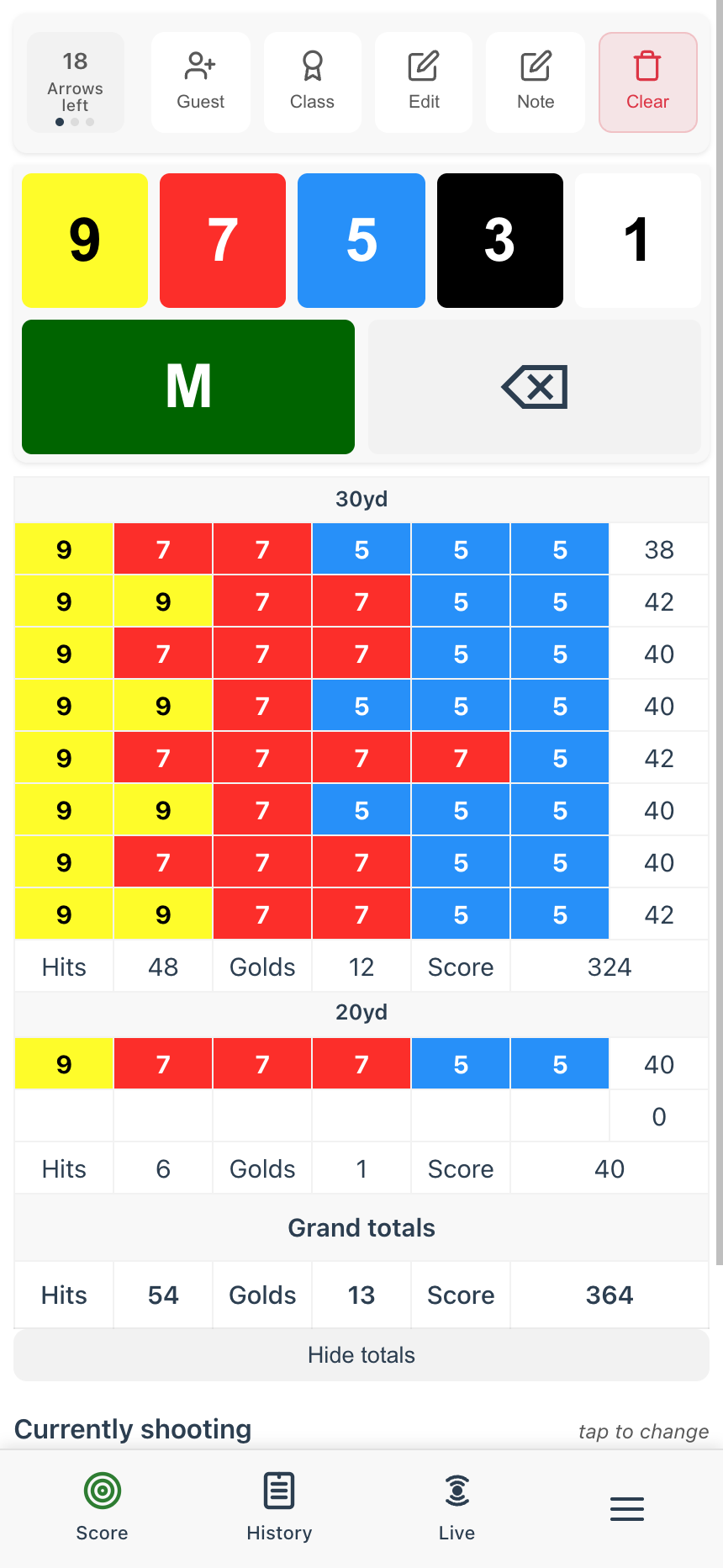
When you've scored your last arrow, Fast automatically pops up the save dialogue. Choose the date and whether it was practice, competition, or a record status shoot, then tap Save to History to record it.
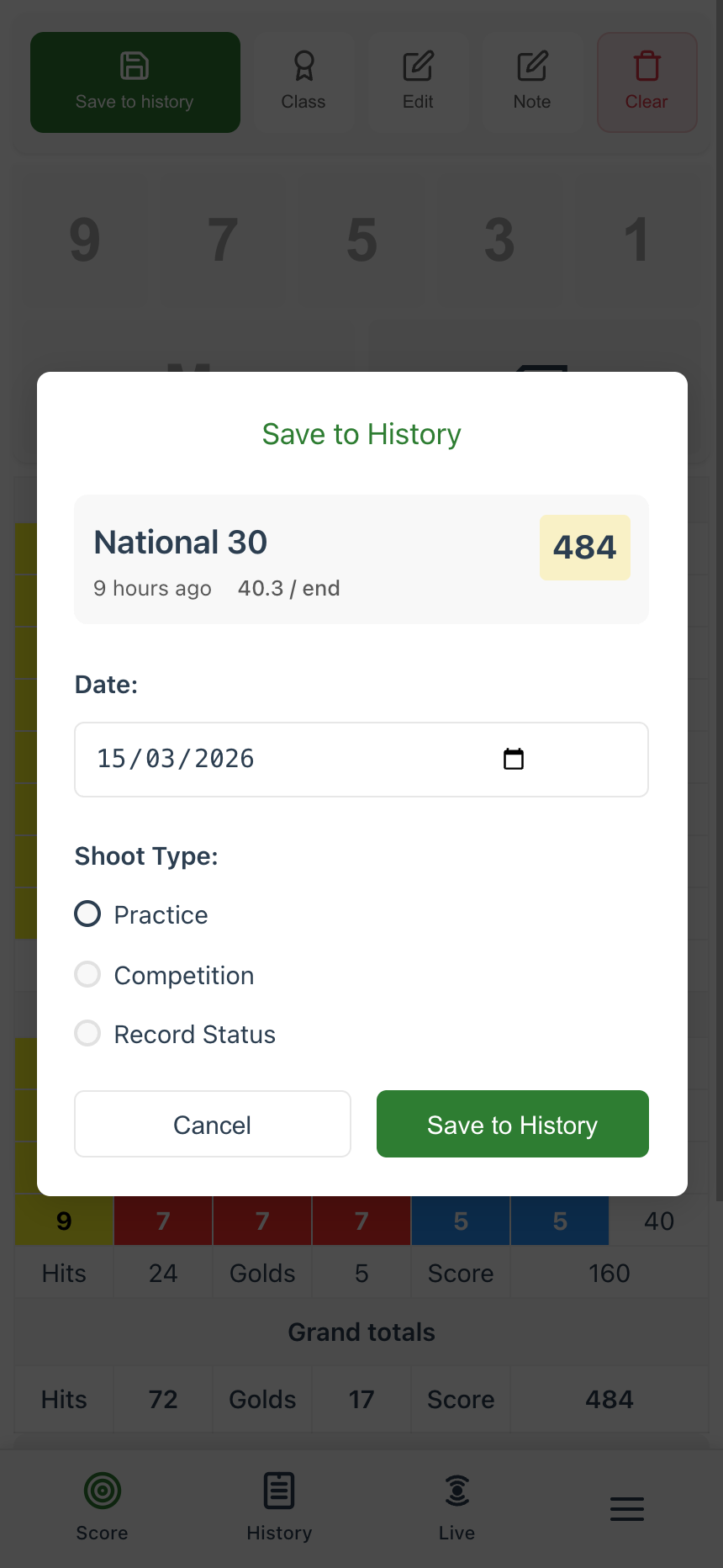
If you prefer not to have the save dialogue appear automatically, you can disable it in your profile under Other Preferences. You can always save manually using the Save to history button at the top of the score card.
Choosing a Round
To start a shoot, tap Score in the bottom-left of the navigation bar. You'll see the score card with your currently selected round displayed beneath the keypad, showing the round name, distances, and classification target.
Your Current Round
The round card shows everything you need at a glance: distances, the score you need for your next classification, and the highest classification achievable on this round. If you've shot it before, you'll also see your personal best and average duration.
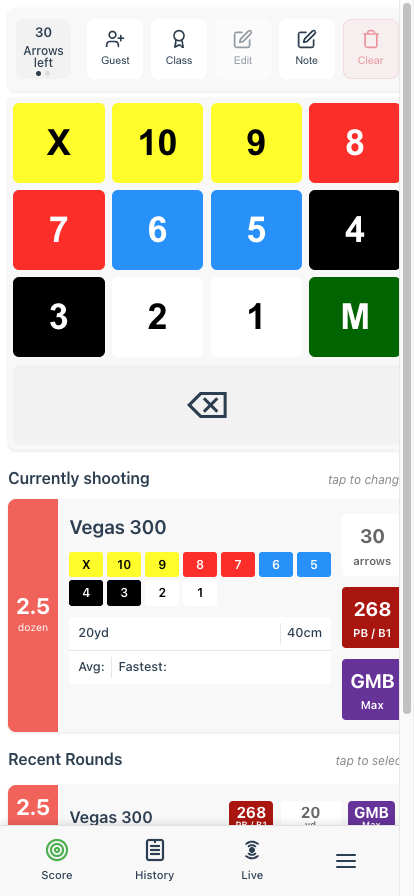
To change rounds, tap the round card (it says "tap to change") and you'll be taken to the round selector.
Finding the Right Round
Fast supports over 100 archery rounds including indoor, outdoor, metric, and imperial formats. Use the filters at the top to narrow things down:
- Indoor/Outdoor - Filter by shooting environment
- Metric/Imperial - Filter by measurement system
- For You - When selected, this will only show rounds that are eligible to improve your classification
- Distance sliders - Set minimum and maximum distances
Each round card shows the score you need for your next classification (e.g. "428 for A1"), so you can easily see what's within reach. Tap the star on any round card to add it to your favourites.
Favourite Rounds
Tap the star icon on any round card to favourite it. Your favourited rounds appear in a dedicated Favourites section on the score card, above your recent rounds, so the rounds you shoot most often are always one tap away.
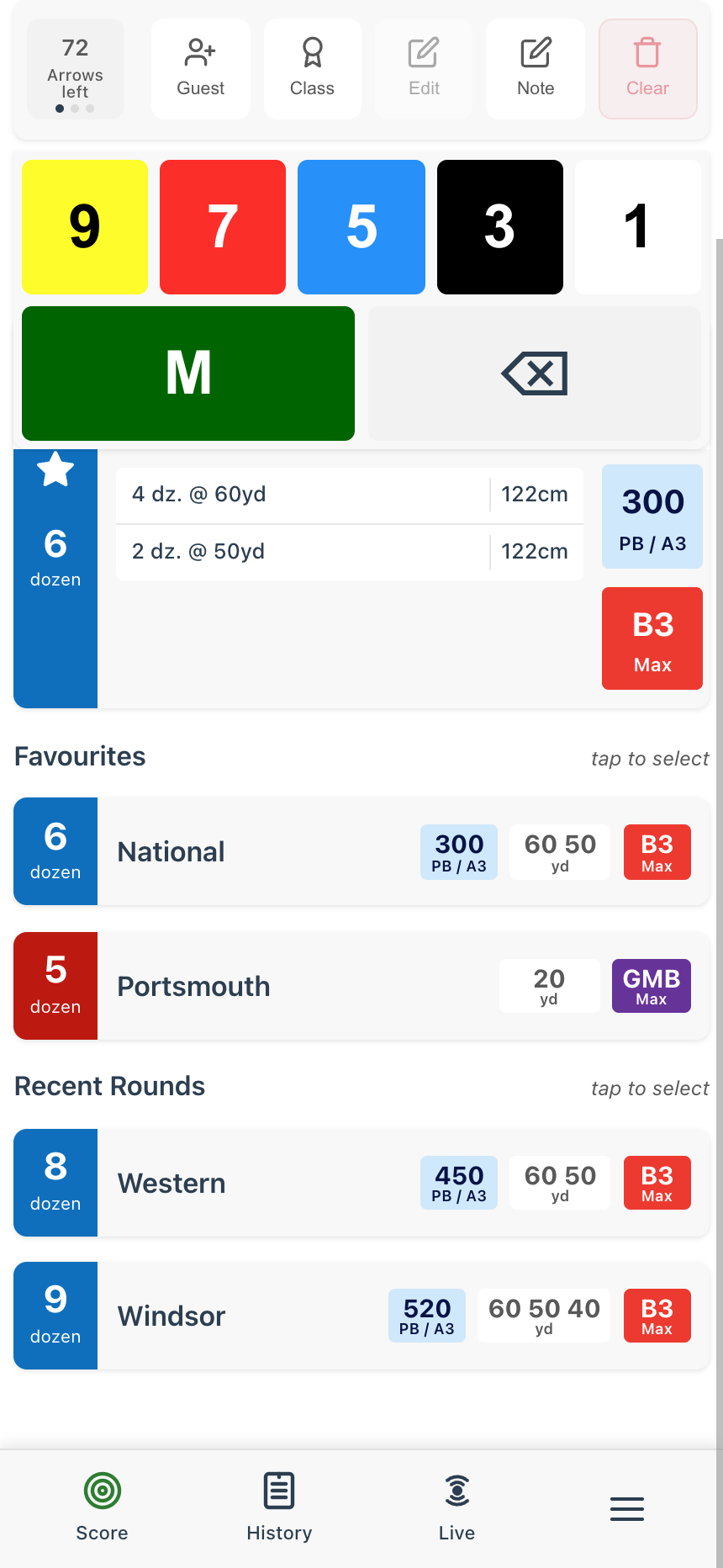
Tap a favourite to select it immediately. To remove a round from your favourites, tap the filled star on the round card.
Blank Boss
Want to practice without worrying about scores? Blank Boss is a special practice mode pinned at the top of the round selection list. Instead of scoring each arrow, you simply count how many you've shot.
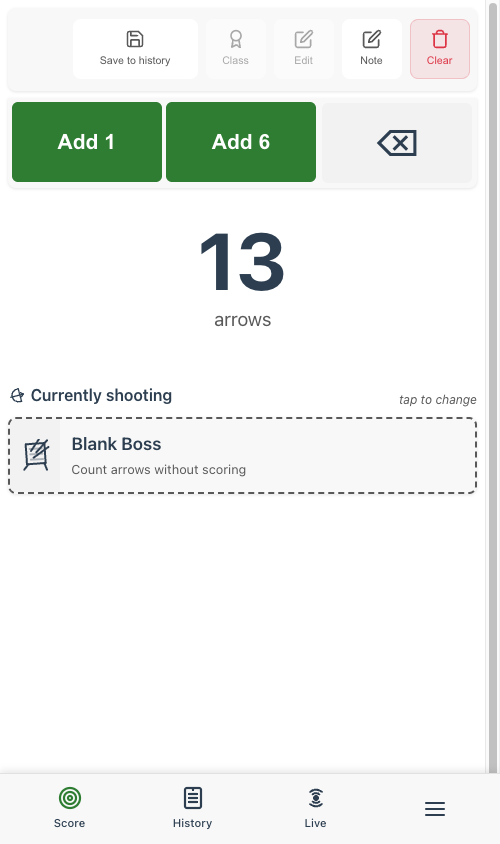
The simplified interface gives you three buttons: Add 1 to count a single arrow, Add 6 to count a full end, and Undo to correct mistakes. When you're done, save to history and your arrow count is recorded alongside your scored shoots.
Recording Scores
The Score Card is the heart of Fast. It's designed to be fast and accurate, even with cold fingers!
Entering Arrow Scores
After selecting a round, you'll see the scoring keypad. Simply tap the score for each arrow, working from highest to lowest (as you would on the target).
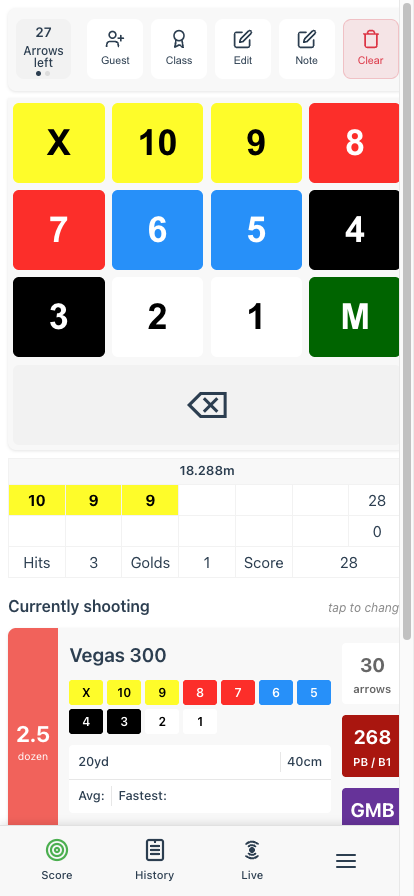
The coloured buttons match target face colours. Disabled buttons show scores you can't enter (you must enter scores in descending order within each end).
Understanding the Display
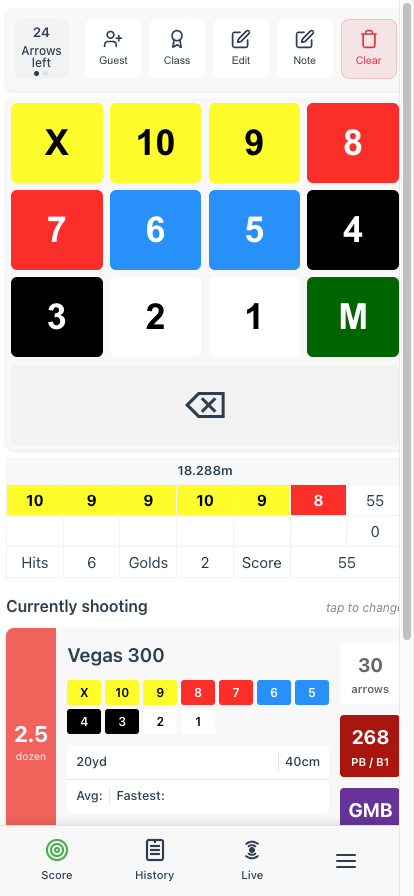
- Arrows left / Max Score - Tap to toggle between arrows remaining and maximum possible score. Small dots indicate it's toggleable.
- Score table - Shows your arrow scores and running totals
- Hits/Golds/Score - Running statistics for the current end
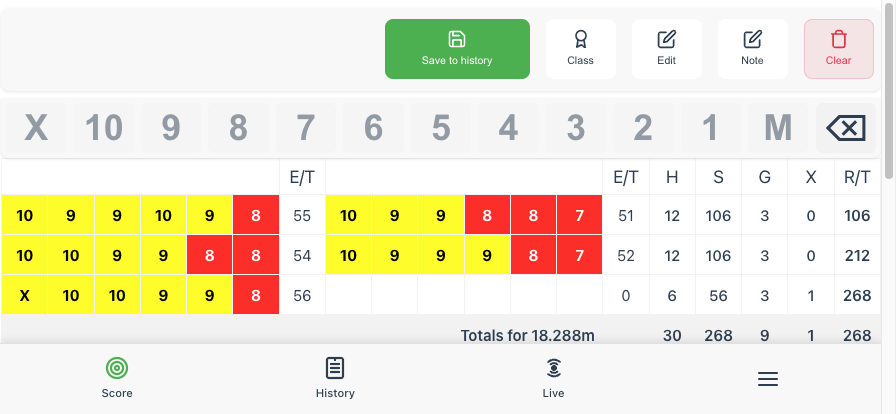
Full Scorecard
Turn your phone to landscape to see the full round score table with running totals, hits, golds, Xs and distance totals.
Action Buttons
- Guest - Add a guest archer to score alongside you (see Guest Scoring)
- Just scoring - Hide the totals and classification info while you shoot (see Just Scoring Mode below)
- Class - View classification details and what scores you need (see Classifications)
- Edit - Modify any previously entered score (see Editing Scores)
- Note - Add notes about your shooting (technique reminders, conditions, etc.)
- Clear - Start over with a fresh score card
Just Scoring Mode
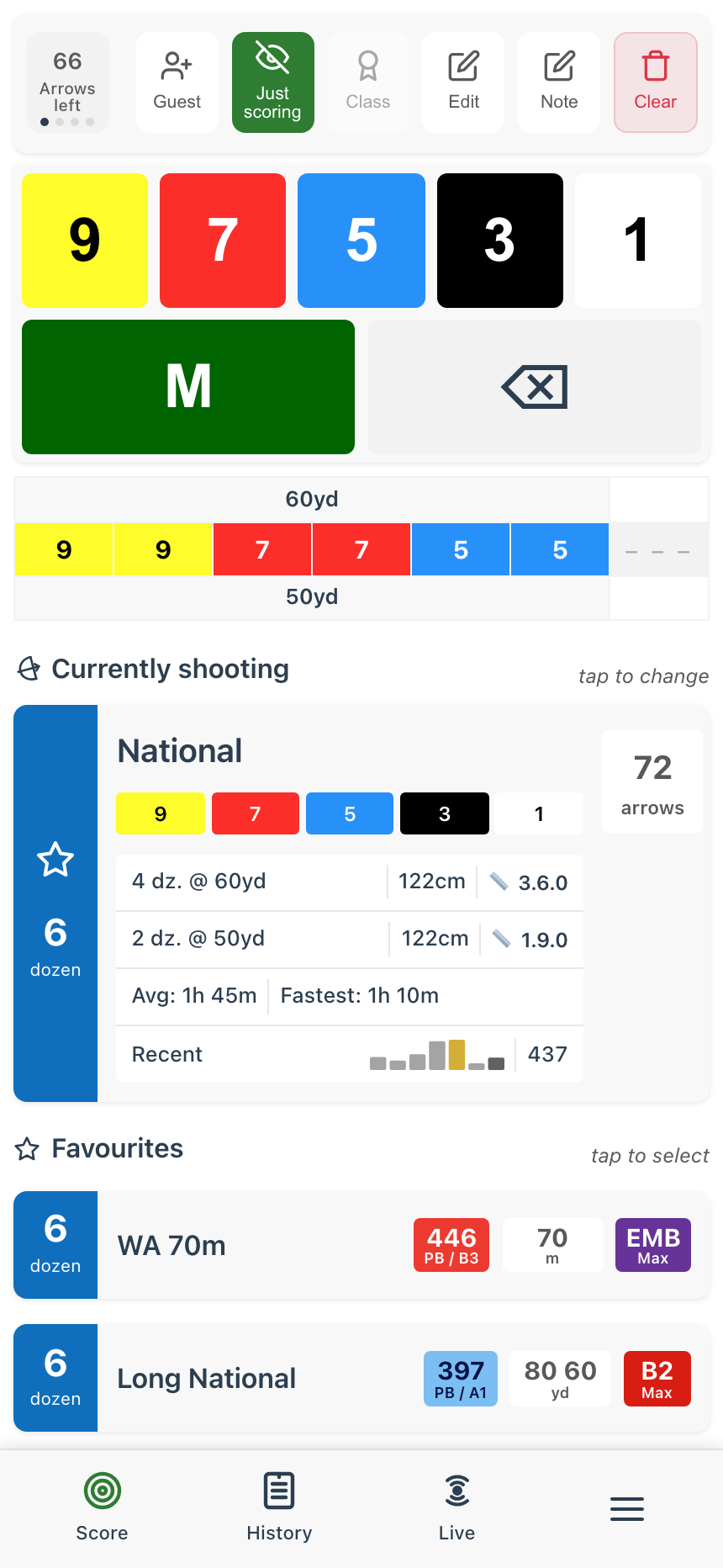
Some archers find seeing totals, classification targets and personal bests while shooting distracting. Tap the Just scoring button (the eye icon in the top bar) to hide all of it at once: the running totals in the score table, plus the classification target, personal best and max classification on the round card. The keypad and your arrow scores stay put, so you can keep entering scores without the running commentary.
Tap it again whenever you want the numbers back. Fast remembers your choice for next time.
Editing Scores
Made a mistake? You can change any previously entered score, not just the last one.
How to Edit a Score
- Tap the Edit button in the top bar. It highlights green to show you're in edit mode, and every score in the table becomes tappable.
- Tap the score you want to change. A popup appears showing the current score and the valid replacements (scores that would keep the end in descending order are enabled, others are greyed out).
- Tap the new score. The end total and grand total update automatically.
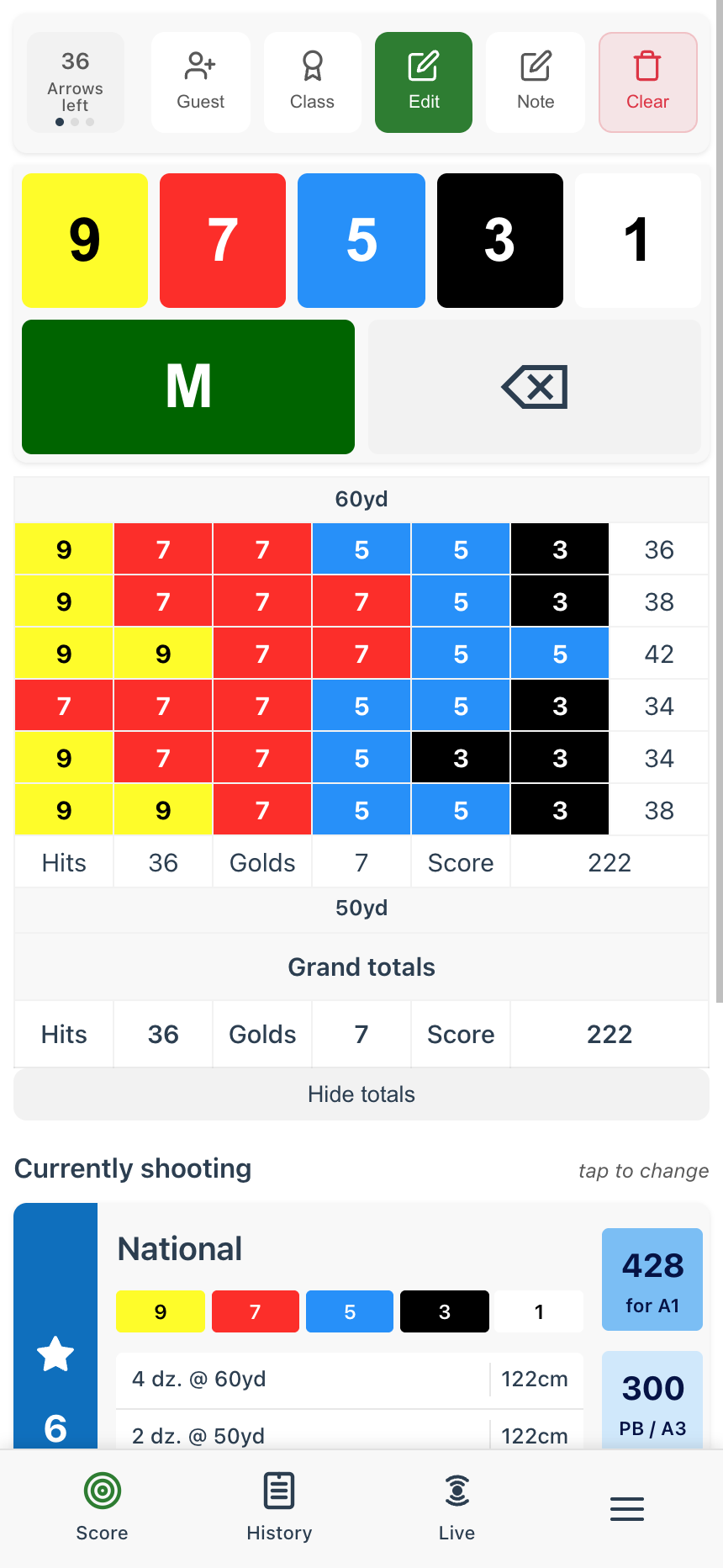
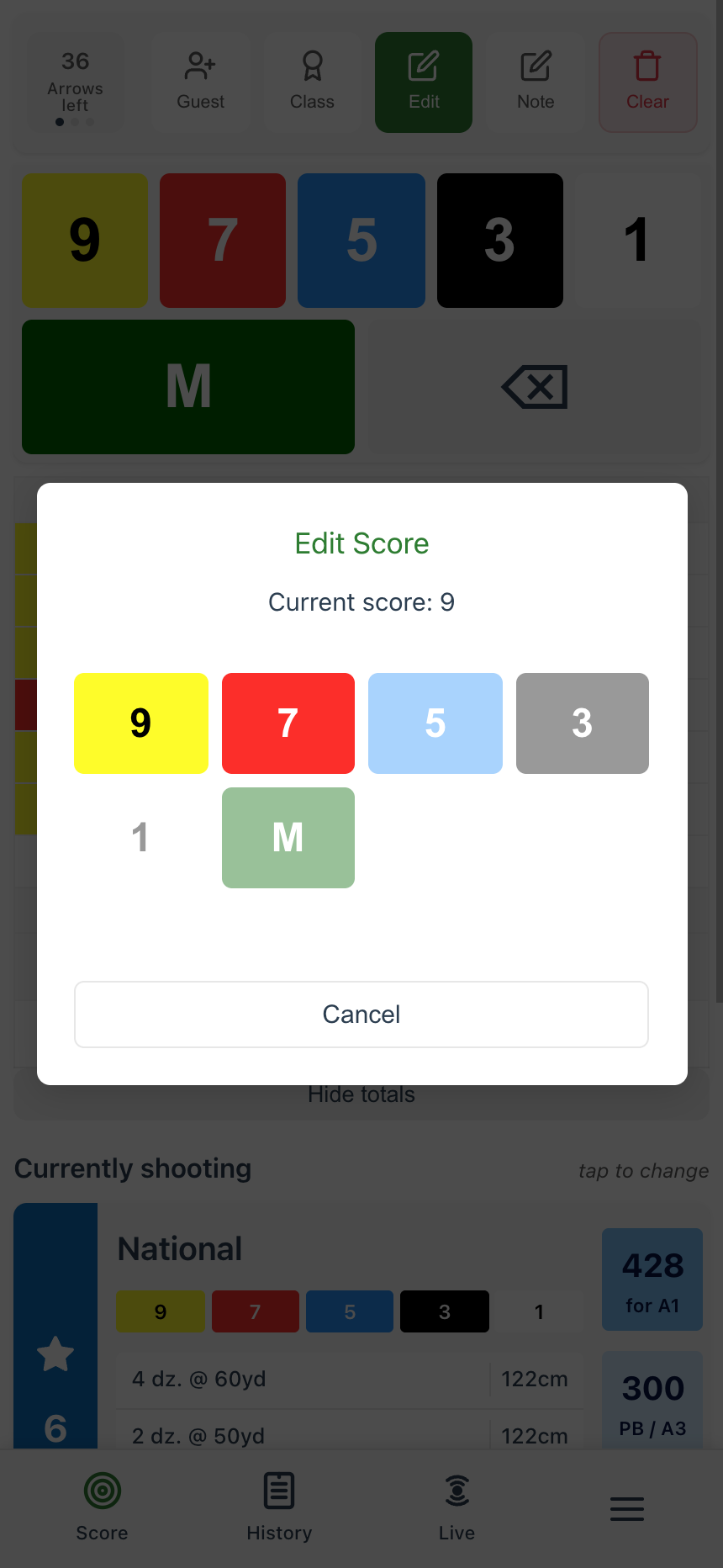
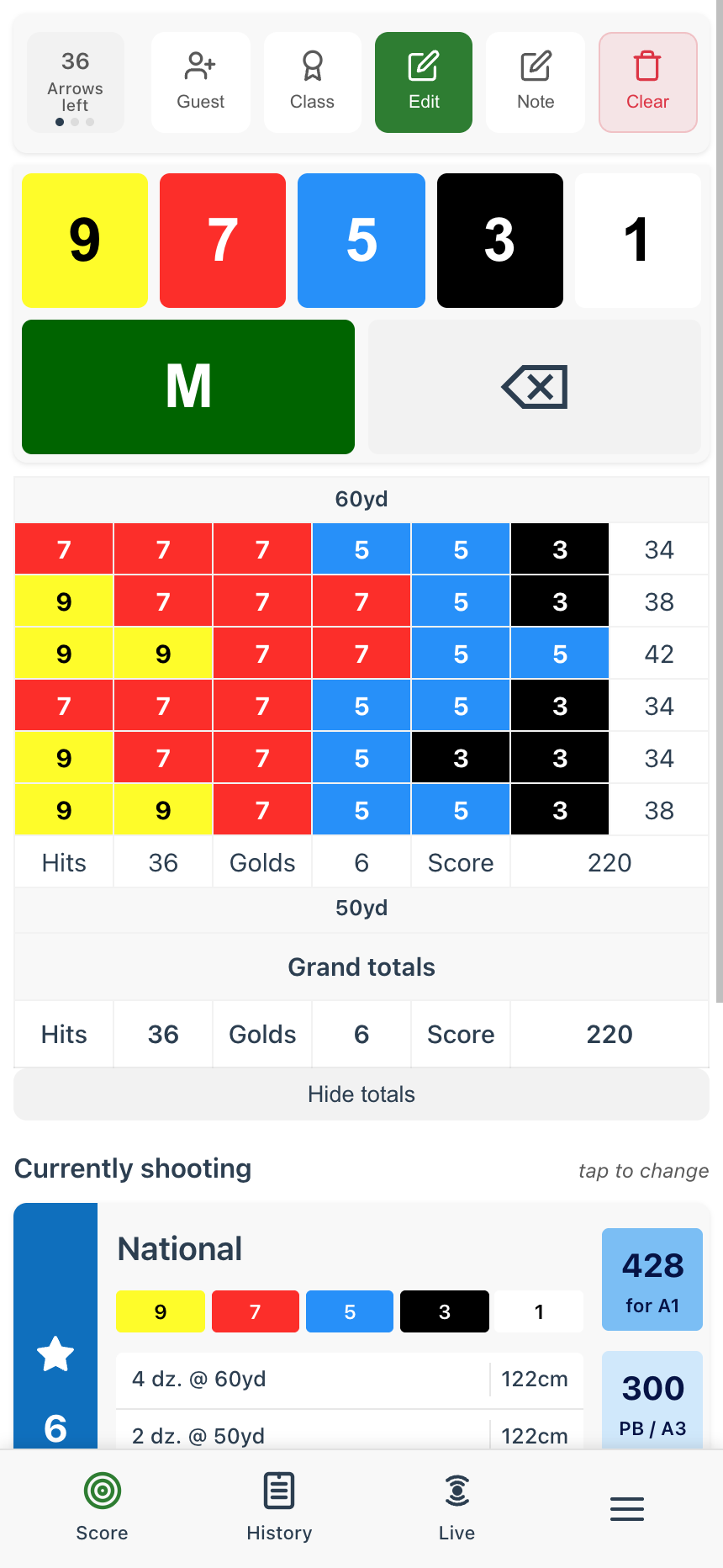
Tap Edit again to exit edit mode. For the most recent arrow, you can also use the backspace button (⌫) to undo without entering edit mode.
Guest Scoring
Shooting with friends who don't have the app? You can record scores for up to 3 guest archers alongside your own, all on one device.
Adding a Guest
Tap the Guest button in the top bar to add a guest archer. Enter their name and tap Add.
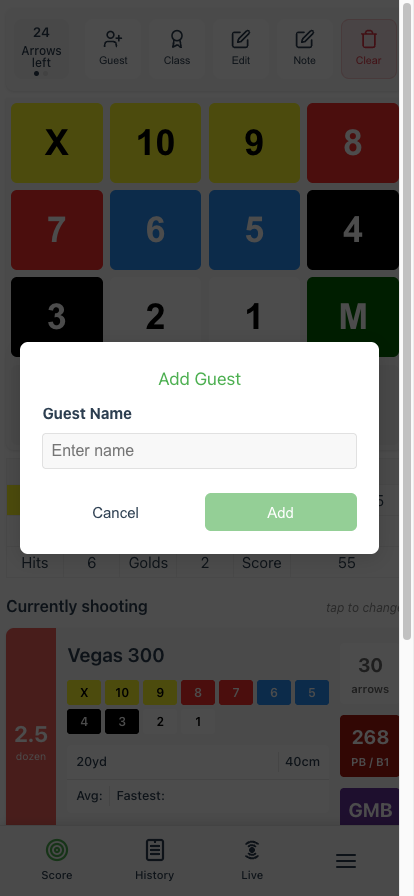
Switching Between Archers
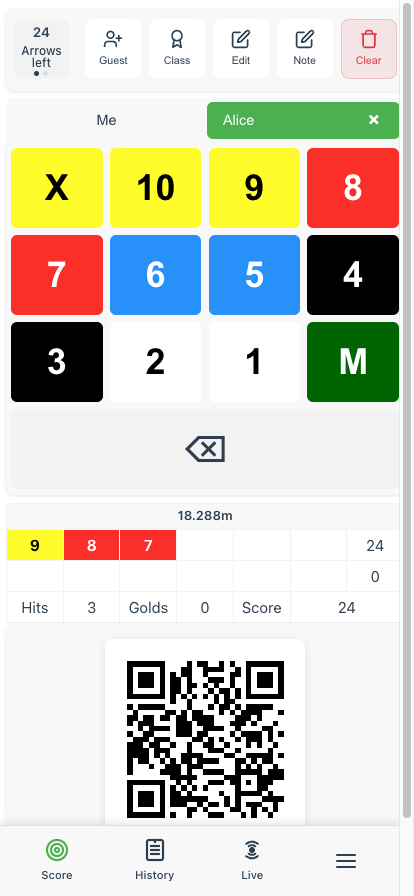
Once a guest is added, tabs appear below the top bar showing Me and your guests. Tap a tab to switch whose scores you're entering.
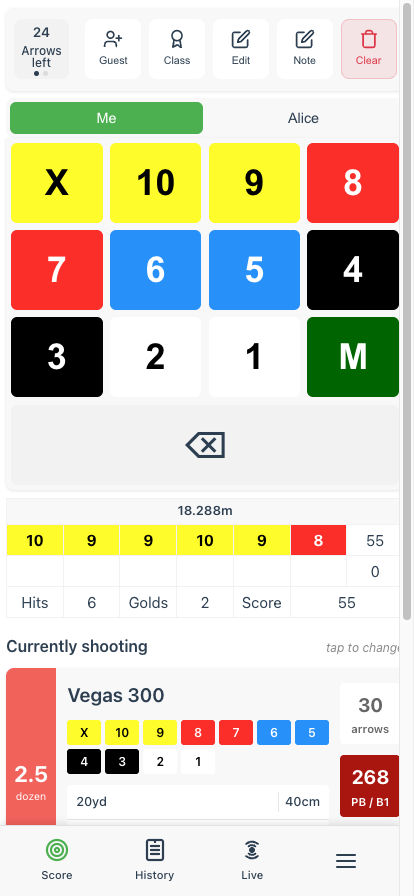
The active tab is highlighted in green. Your own scores and your guests' scores are tracked independently for the same round.
Sharing Guest Scores
When viewing a guest's scores, a QR code appears below the score table. The guest can scan this to launch Fast on their phone with their scores already loaded - a great way to introduce them to the app!
Removing a Guest
To remove a guest, tap their tab to select them, then tap the × icon on their tab. You'll be asked to confirm before their scores are discarded.
History & Progress
All your completed shoots are saved automatically. View them anytime in the History section.
Classification Progress
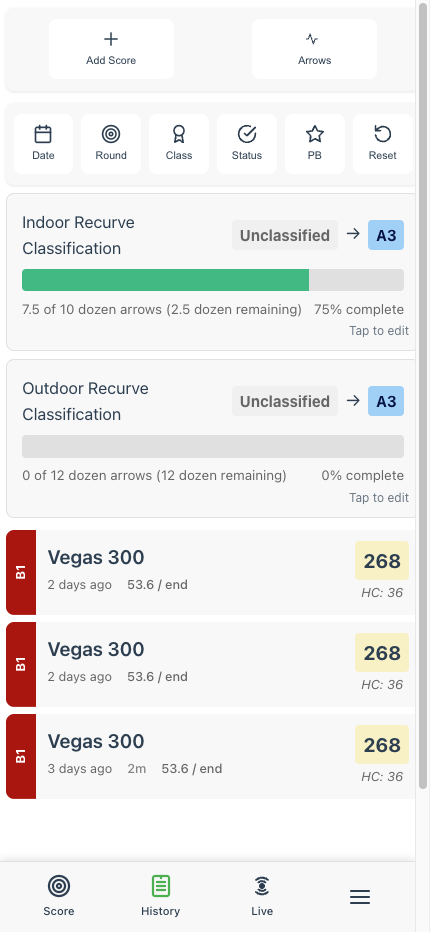
At the top of the History page, you'll see your progress towards your next classification. This shows:
- Your current classification level
- The classification you're working towards
- How many dozen arrows you've shot that count
- A progress bar showing completion percentage
Tap the progress card to edit your target classification.
Filtering Your History
Use the filter buttons to find specific shoots:
- Date - Filter by time period
- Round - Show only specific round types
- Class - Filter by classification achieved
- Status - Practice vs Competition shoots
- PB - Show only personal bests
Adding Manual Scores
Need to add a score from a shoot you didn't record in the app? Tap Add Score to manually enter historical results.
Viewing a Shoot
Tap any shoot in your history to see detailed information about that session.
Shoot Details
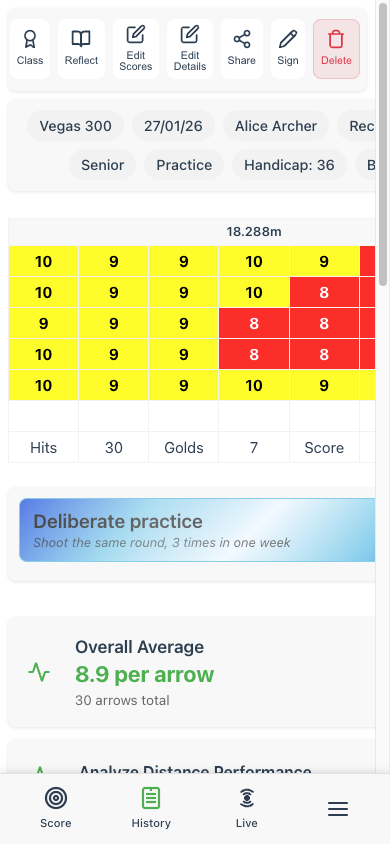
At the top you'll see key information about your shoot:
- Round name and date
- Bow type, gender, age group - The profile used for this shoot
- Practice/Competition - The shoot status
- Handicap - Your calculated handicap for this score
- Classification - The classification achieved (e.g., B1)
Action Buttons
The toolbar at the top lets you:
- Class - View classification breakdown
- Reflect - Add a reflection about the shoot
- Edit Scores - Correct any mistakes in your arrows
- Edit Details - Change date, status, or other metadata
- Share - Share your scoresheet (see below)
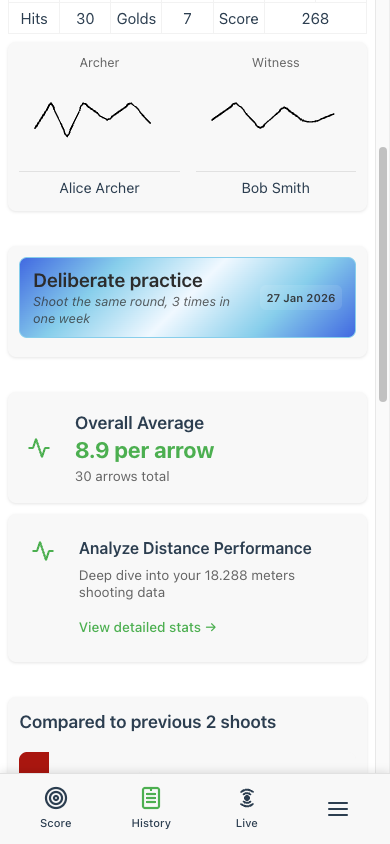
- Sign - Add digital signatures from archer and witness (see Signing Scoresheets)
- Delete - Remove this shoot from history
Statistics & Charts
Scroll down to see detailed analysis of your shoot:
- Overall Average - Your average score per arrow
- Analyze Distance Performance - Deep dive into specific distances
- Compared to previous shoots - See how this shoot compares to recent sessions of the same round
- End Total chart - Visual graph showing your performance across ends
- Score Distribution - Pie chart showing the breakdown of your scores
Sharing Your Scoresheet
Tap Share to open sharing options:
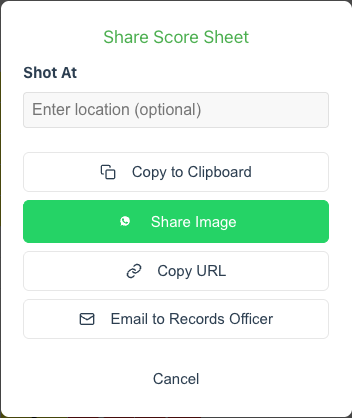
- Copy to Clipboard - Copy a text summary of your score
- Share Image - Create and share an image of your scoresheet
- Copy URL - Get a shareable link that anyone can view
- Email to Records Officer - Send directly to your club's records officer (set up email in Settings)
You can also add the location where you shot before sharing.
Diary
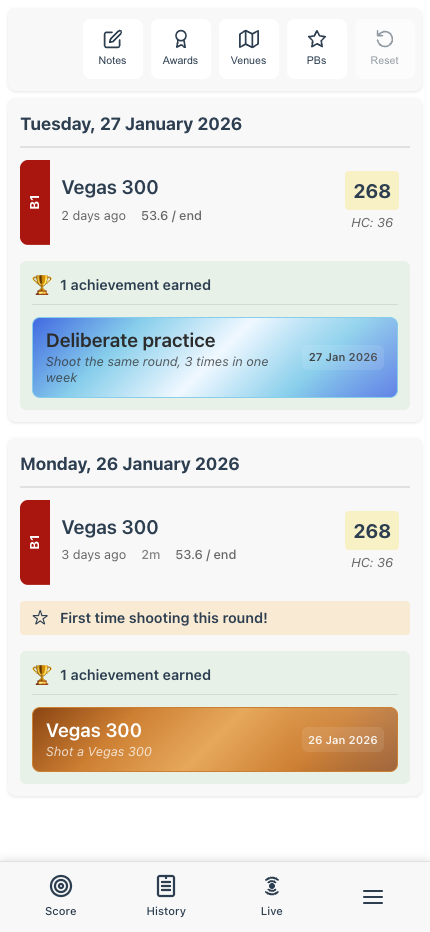
The Diary gives you a timeline view of your archery journey, combining shoots, achievements, and milestones.
What You'll See
- Shoots - Each shoot with score, classification, and stats
- Achievements - Awards earned on each day
- Milestones - First time shooting a round, personal bests
- Notes - Notes you added during shooting, or standalone notes added directly from the diary
Filtering the Diary
- Notes - Show only entries with notes
- Awards - Show only achievement days
- Venues - Filter by shooting location
- PBs - Show only personal best shoots
Note Taking
Scores tell you what happened, but notes capture why. Fast lets you take notes in the moment, while you're still at the target, so you never lose the details that matter. You can also add notes any time from the Diary.
Capturing Your Thoughts Mid-Shoot
Tap the Note button on the score card at any point during a shoot. Write down whatever is on your mind: a technique adjustment that clicked, wind conditions, something your coach said, or why an end went wrong.
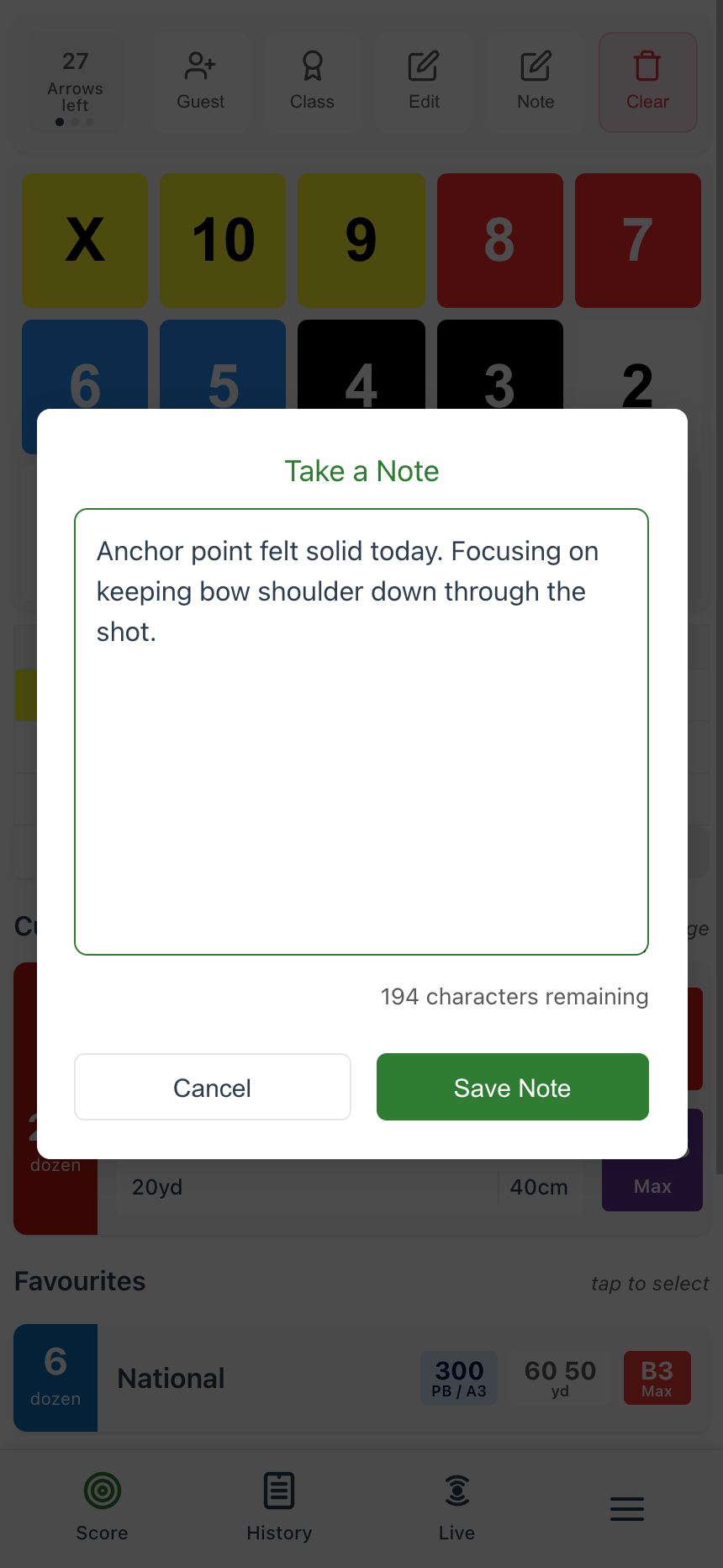
Each note is saved against the specific end you were shooting, so when you look back you'll know exactly where in the round your observation came from. Had a poor end? Capture what went wrong straight away, before you forget.
Adding Notes Outside a Shoot
You don't have to be mid-shoot to take notes. Tap the Add note button at the top of the Diary page to jot down anything: equipment changes, coaching tips, goals, or just something you want to remember.
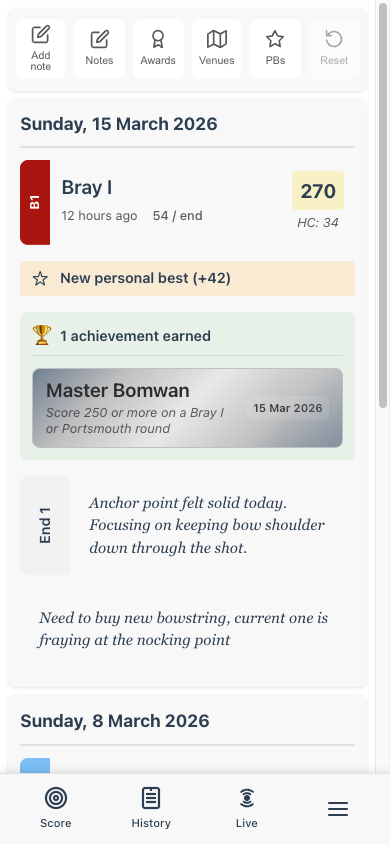
Standalone notes appear in the diary under today's date, without a shoot card attached. They're useful for recording thoughts between sessions.
Notes in Your Diary
Your notes appear in the Diary alongside the shoot they belong to. The score, classification, and your notes all in one place. This means you're not just looking at numbers; you can recall what you were thinking and feeling during the shoot.
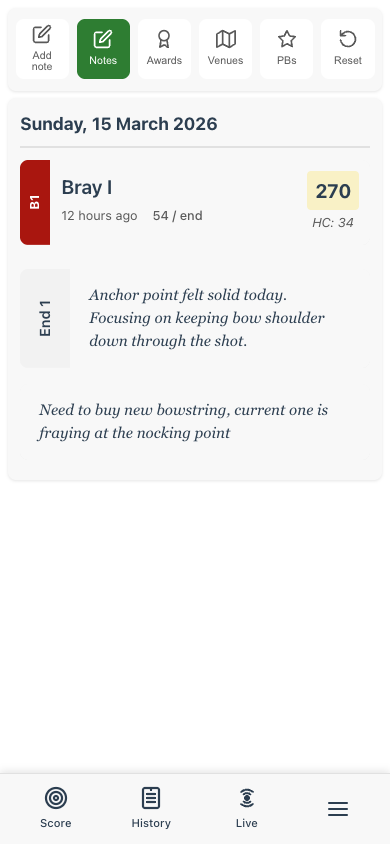
Over weeks and months, these notes become a personal coaching log. You'll start to spot patterns: what works on windy days, which technique changes actually stuck, and what mental state produces your best shooting.
Quick Reflection
Quick Reflection helps you build a deliberate practice habit. After each shoot, you'll reflect on what went well, what needs work, and what to focus on next time. Over time, this builds self-awareness and helps you improve faster.
Enabling Quick Reflection
Go to your Profile page and scroll to Other Preferences. Tick "Enable post-shoot quick reflection" to turn it on.
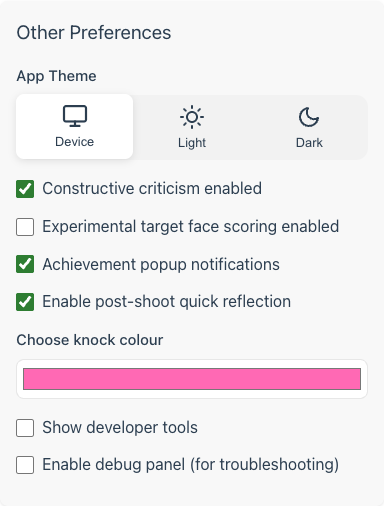
Reflecting After a Shoot
Once enabled, a Quick Reflection popup appears automatically after you save a completed shoot. It walks you through six quick steps:
- Strongest - which part of your shot process felt best?
- Needs work - which part needs the most improvement?
- Groupings - what did you notice about your arrow groupings? (optional)
- Focus rating - how well did you stay focused? (1-5)
- Energy rating - what was your energy level? (1-5)
- Next focus - pick ONE thing to work on next time
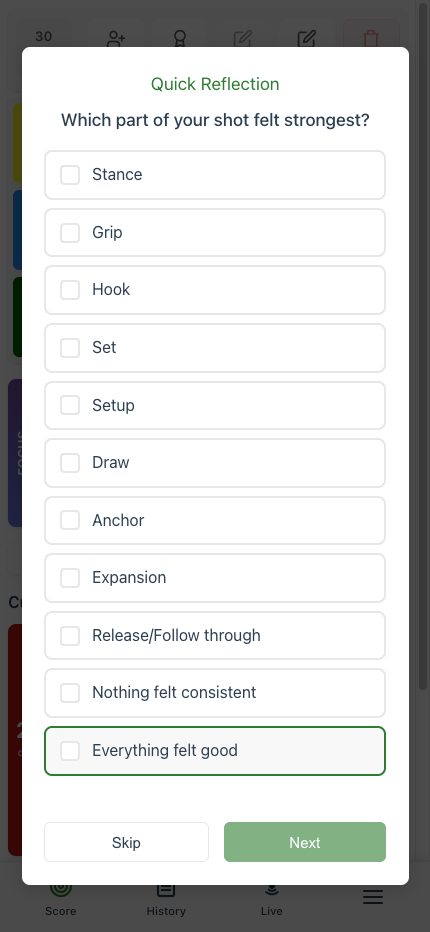
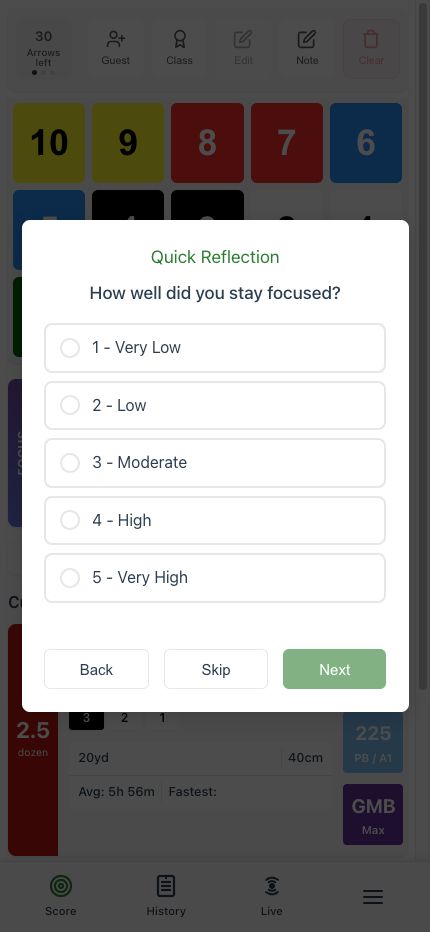
You can Skip at any time if you'd rather not reflect on a particular shoot.
Reviewing Your Reflections
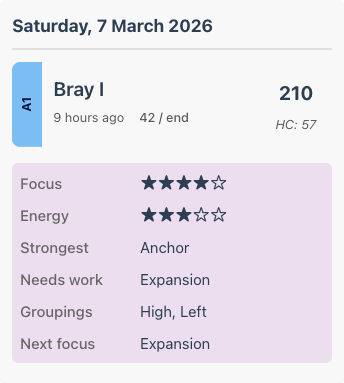
Your reflection summary appears on the View Shoot page and in the Diary, showing your ratings, strongest element, and what you chose to focus on.
Focus Reminder
When you start your next shoot, a focus reminder banner appears on the scorecard showing what needed work and your chosen focus for today. This keeps your practice intention front and centre.
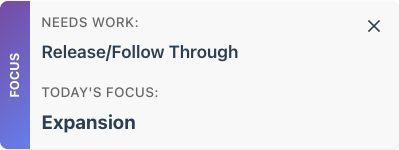
Tap the × to dismiss the reminder once you've read it. It won't reappear until your next reflection.
Understanding Classifications
Archery GB uses a classification system to recognise archer ability. Fast automatically calculates your classifications based on your scores.
For full details on classification tiers and requirements, see Archery GB's official guide.
How Classifications Work
To achieve a classification, you typically need to shoot a qualifying score on three separate occasions within a defined period. Fast tracks this automatically and shows your progress.
Indoor and outdoor classifications are tracked separately, as are different bow types.
Viewing Your Classification Details
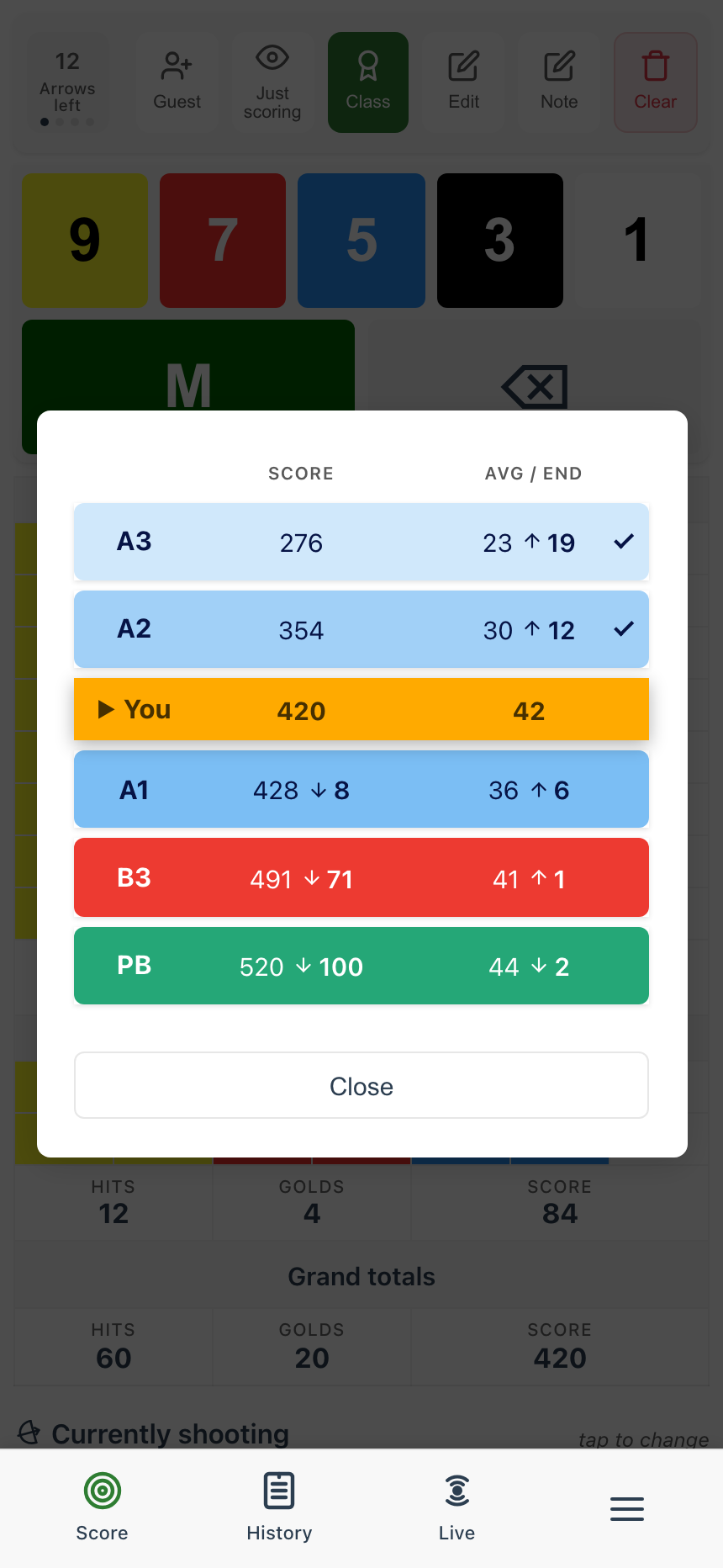
During a shoot, tap the Class button to see every classification ranked by the score it needs, alongside the average per end to stay on track. Grades you've already reached are ticked, your current score is marked in place so you can see what's within reach, and your personal best for the round is highlighted.
Achievements
Fast includes over 250 achievements to earn, from simple milestones to challenging goals.
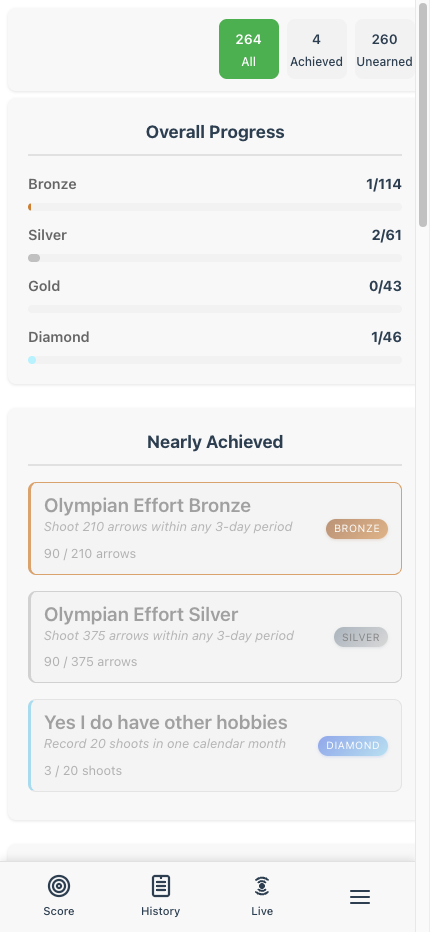
Achievement Tiers
- Bronze - Entry-level achievements
- Silver - Intermediate challenges
- Gold - Advanced goals
- Diamond - Elite accomplishments
Achievement Categories
Achievements cover many aspects of archery:
- Score-based - Hit certain scores on specific rounds
- Volume - Shoot lots of arrows (Olympian Effort)
- Consistency - Shoot regularly (Deliberate Practice)
- Exploration - Try different rounds
- Perfect ends - Golden ends and more
Nearly Achieved
The "Nearly Achieved" section shows achievements you're close to earning, with progress indicators to motivate you!
Equipment
Track your bow setup so you can reproduce what works, see what you were shooting with when you hit a PB, and link sight marks to specific equipment.
Creating Equipment Sets
Open Equipment from the menu to create and manage your equipment sets. Each set represents a complete bow setup that you can name however you like (e.g. "Outdoor Recurve 2026" or "Indoor Setup").
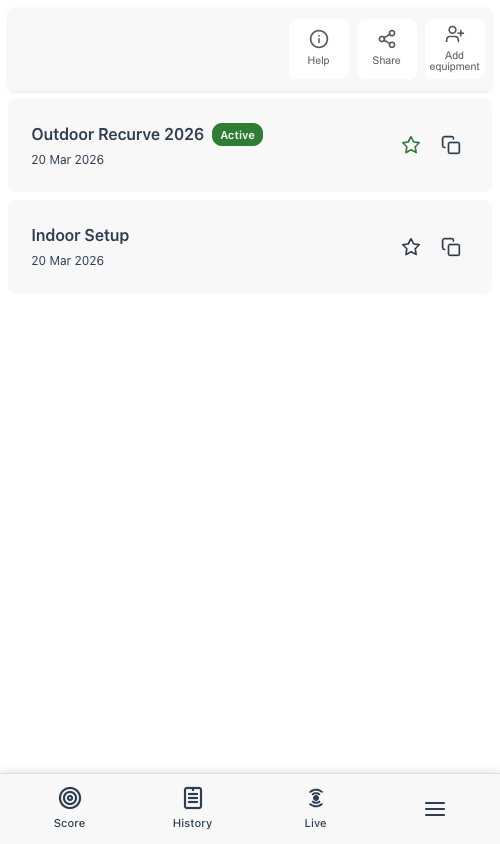
One set can be marked as Active, shown with a green badge. Your active equipment is automatically recorded with every shoot you save, so you always know what you were shooting with.
Equipment Details
Tap an equipment set to open its detail page. Record everything about your setup across expandable sections:
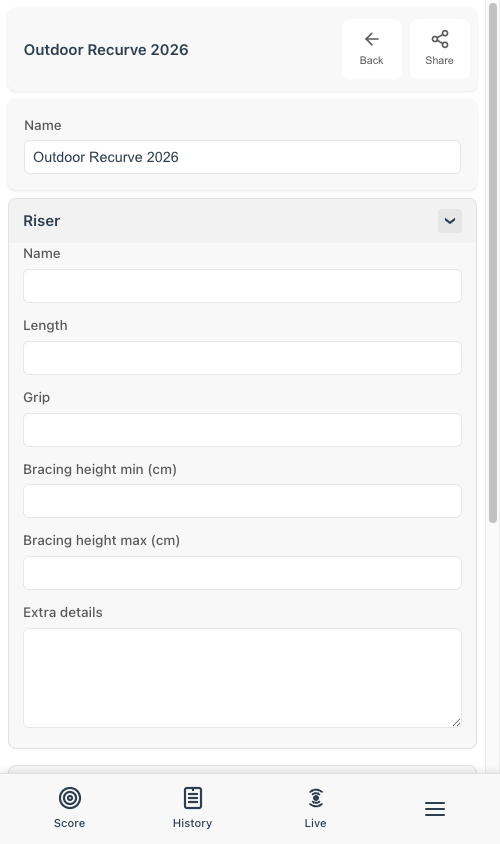
- Riser - Name, length, grip, bracing height
- Limbs - Name, poundage, length
- Measurements - Tiller, nocking point, button position
- String - Material, strand count, bracing height
- Arrows - Spine, length, points, fletchings
- Stabilisation - Long rod, short rods, V-bar
- Sight - Make, model, details
Sight Marks
Keep track of your sight settings for different distances. Never forget a sight mark again!
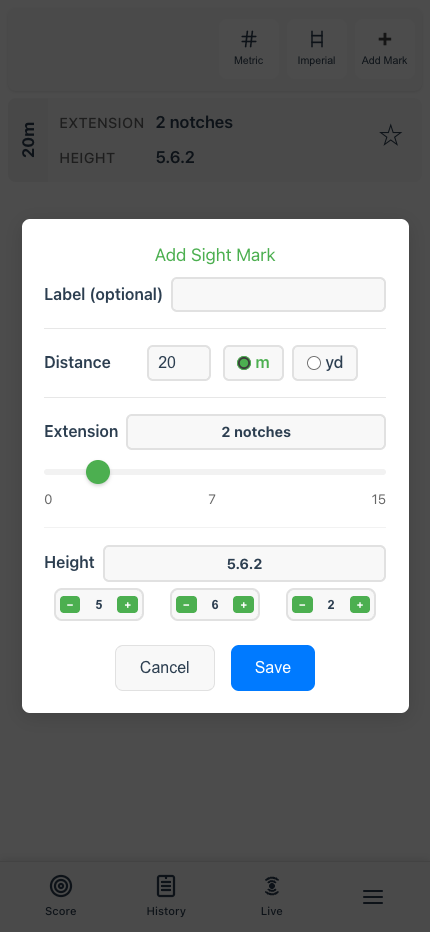
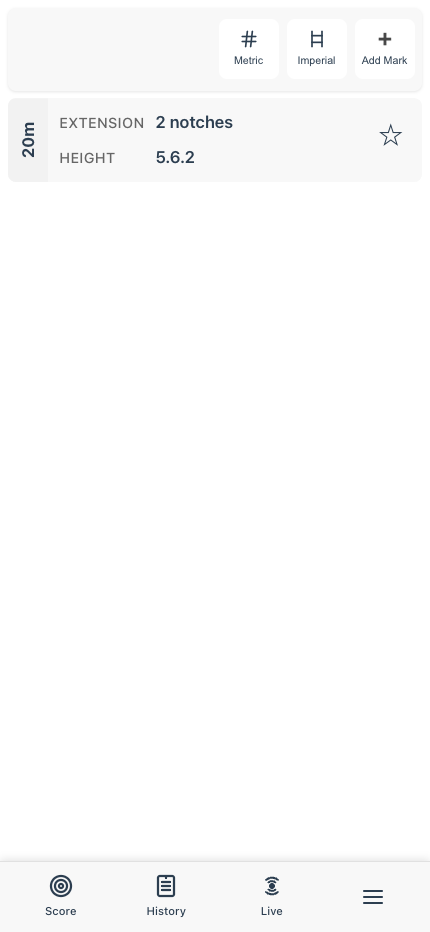
Recording Sight Marks
The add mark form has two tabs: Sight and Notes.
On the Sight tab, for each distance you can record:
- Distance - In meters or yards
- Extension - Number of notches on the sight bar, set with a slider
- Height - Sight bar position as three components (major.minor.micro), adjusted with +/− buttons
- Label - Optional note
- Equipment - Link to one of your equipment sets
The Notes tab is for free-text distance notes. Barebow and longbow archers can use it to record string-walking marks or other reference points that don't fit the sight mark format.
Organisation
- Distance range filters - Use the min/max sliders to show only the distances you need, in meters or yards
- Equipment grouping - Marks are grouped by equipment set, with your active set shown first and marked with an Active badge
- Auto-sorting - Distances ordered logically within each group
Estimating Sight Marks
When you have two or more sight marks recorded for your active equipment, the Estimate button appears in the add mark form. Enter a new distance, tap Estimate, and your extension and height values are predicted from your existing marks.
With three or more marks, the estimation uses quadratic regression to better model the curve of arrow flight, giving you more accurate predictions than a simple straight-line guess.
Linking to Equipment
When you add a sight mark, it defaults to your active equipment set. You can change it to any other set, or leave it unlinked.
Your sight marks are always to hand when you're shooting. The round card on the scoring page automatically displays your sight settings for each distance in the round, pulled from your active equipment set. No need to switch screens or look anything up mid-shoot.
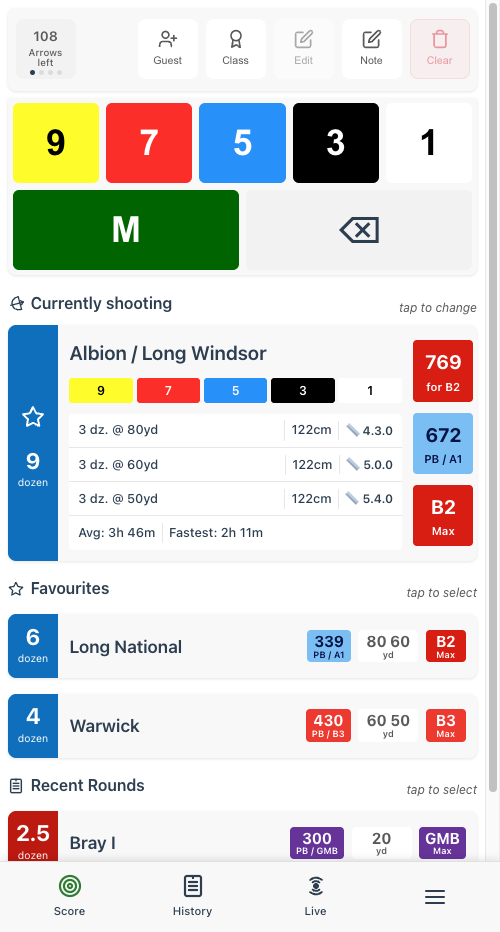
Marks not linked to any equipment are always visible regardless of which set is active.
Tuning
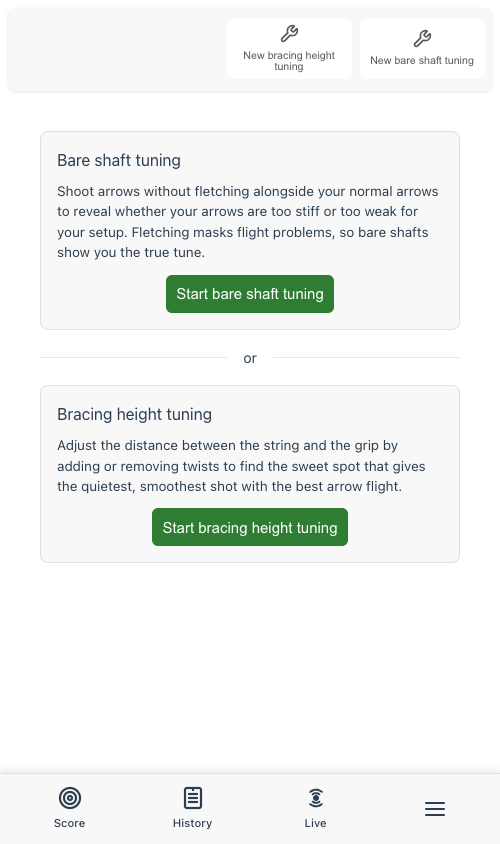
Tuning helps you match your arrows to your bow so they fly as cleanly as possible. Fast supports two types of tuning: bare shaft tuning and bracing height tuning. Each tuning session is linked to one of your equipment sets, so you'll need to create one first if you haven't already.
1. Start a bare shaft session
Open Tuning from the menu and tap New bare shaft tuning. Pick the equipment set you want to tune.
2. Run an experiment
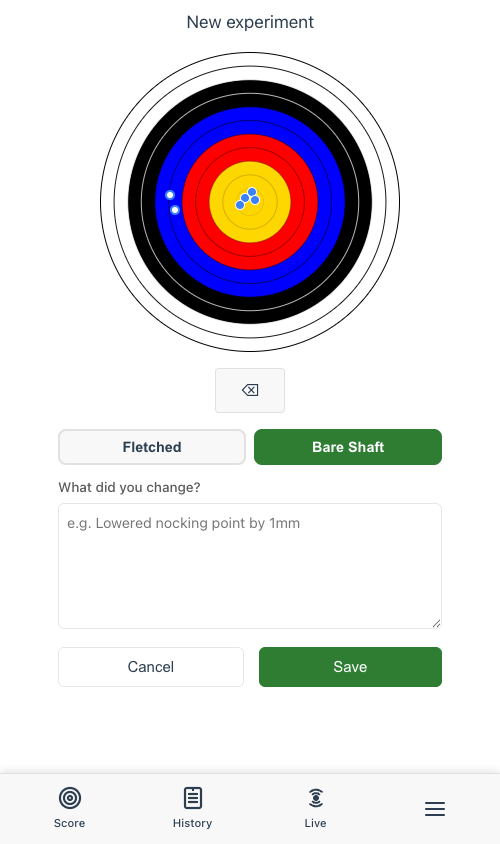
Tap Get started to add your first experiment. Shoot a group of fletched arrows and a couple of bare shafts (arrows without fletchings) at the same target. Then plot them on the target face: tap to place each arrow, and use the Fletched / Bare Shaft toggle to switch between arrow types.
In this example, the four fletched arrows (solid dots) are in the gold, but the two bare shafts (hollow dots) have drifted left into the blue.
3. Diagnose with the wizard
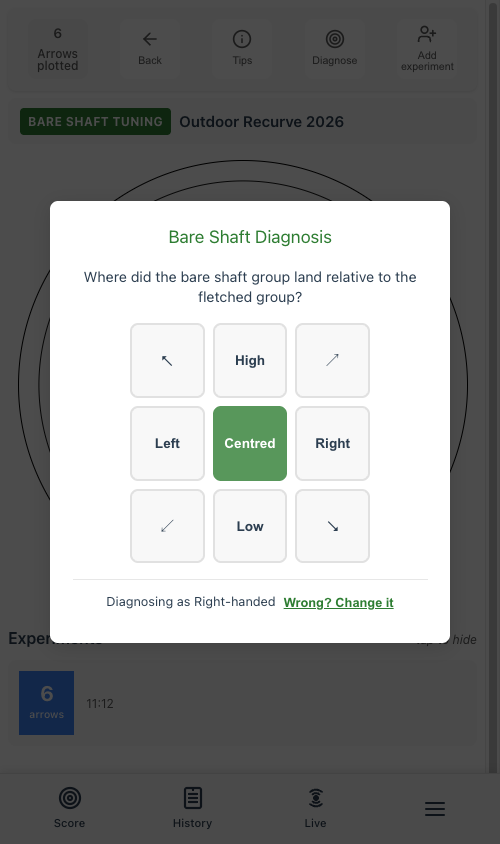
After saving the experiment, tap Diagnose in the top bar. A compass grid asks where the bare shaft group landed relative to the fletched group. In this case, the bare shafts went left.
4. See the advice
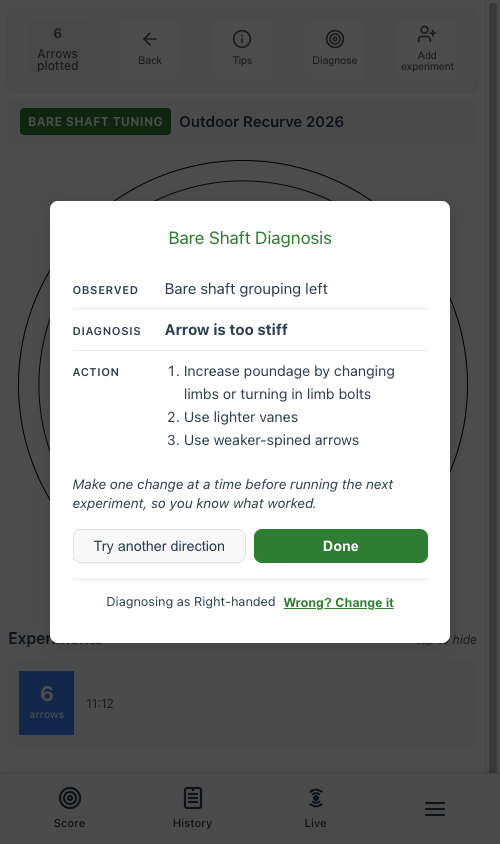
Fast tells you what it observed, what it means, and what to try next. Here, bare shafts grouping left (for a right-handed archer) means the arrows are too stiff. The suggested actions are to increase poundage, use lighter vanes, or switch to weaker-spined arrows.
5. Make a change and re-test
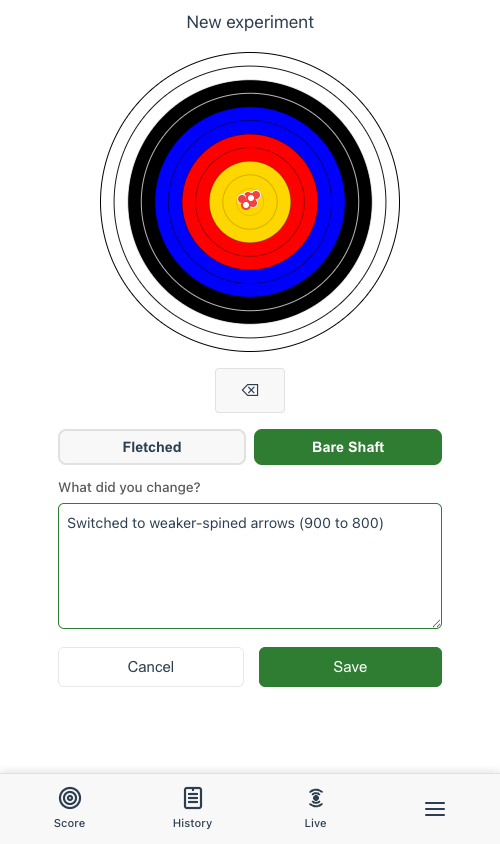
Action one of the suggestions and run another experiment. Use the notes field to record what you changed. This time, after switching to weaker-spined arrows, the bare shafts and fletched arrows are grouping together in the gold.
6. Track your tuning journey
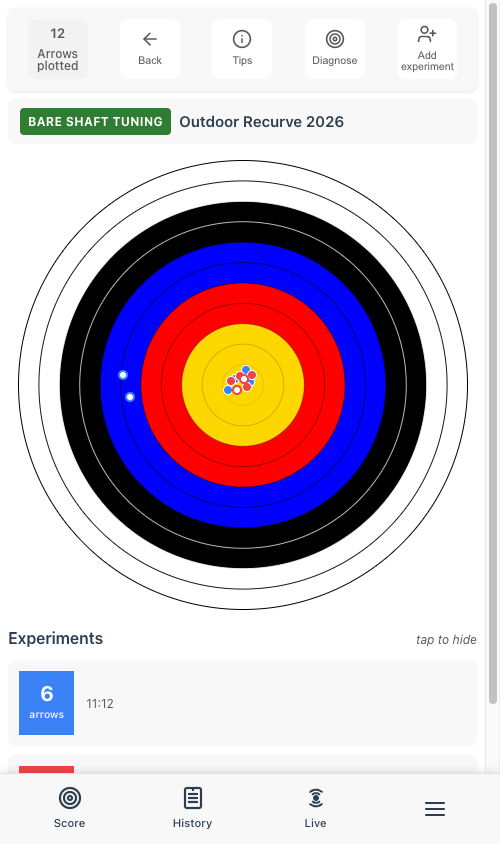
Every experiment is kept on the session page so you can see how your tune has progressed. The target overlay shows arrows from all experiments in different colours, and each experiment card shows the arrow count, time, and your notes.
Signing Scoresheets
In competition, scoresheets need to be countersigned by the archer and a witness. Fast lets you do this digitally: draw your signature with your finger and attach it to any completed shoot.
Adding Signatures
After completing a shoot, tap the Sign button in the toolbar to open the signature modal.
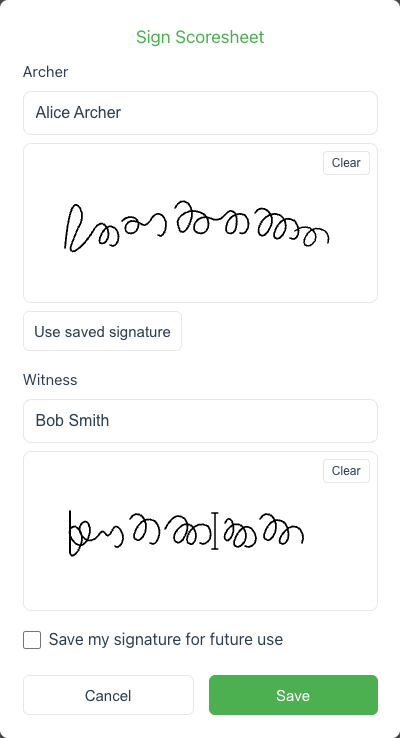
- Your name is pre-filled from your profile. Draw your signature in the archer pad.
- Enter the witness's name and have them draw their signature below.
- Tick "Save my signature for future use" to skip drawing next time.
- Tap Save to attach the signatures to the shoot.
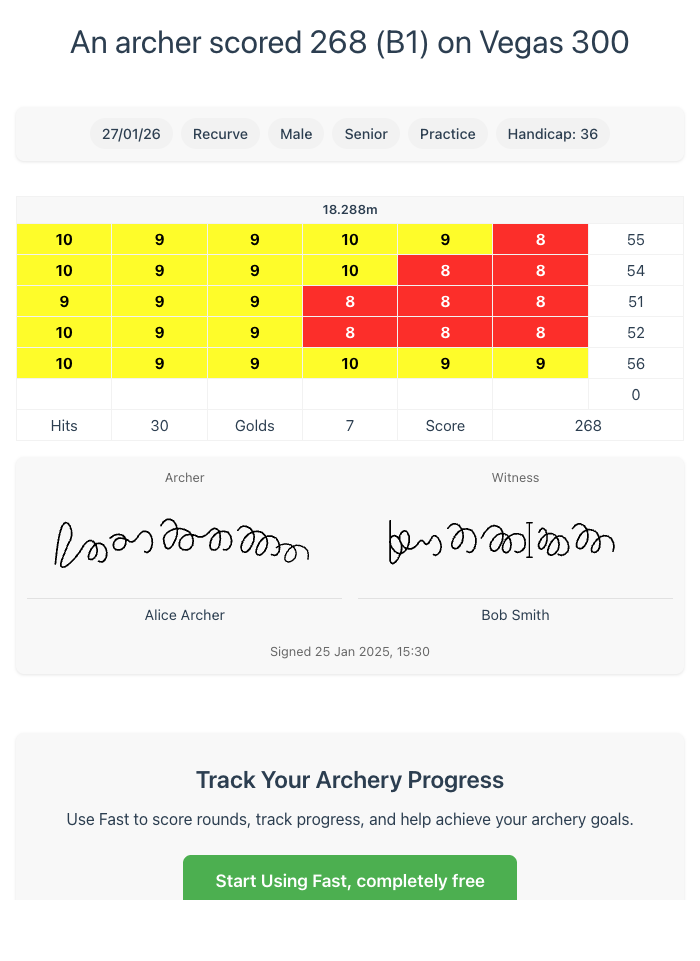
Signatures in Shared Scoresheets
Signatures are included when you share a scoresheet via URL or image, perfect for submitting to your records officer.
Golden Records
If your club uses Golden Records to track members' scores, you can send completed shoots directly from Fast — no re-typing, no re-calculating. This is a one-time setup; after that it appears as an option in the Share menu for every shoot.
One-time setup
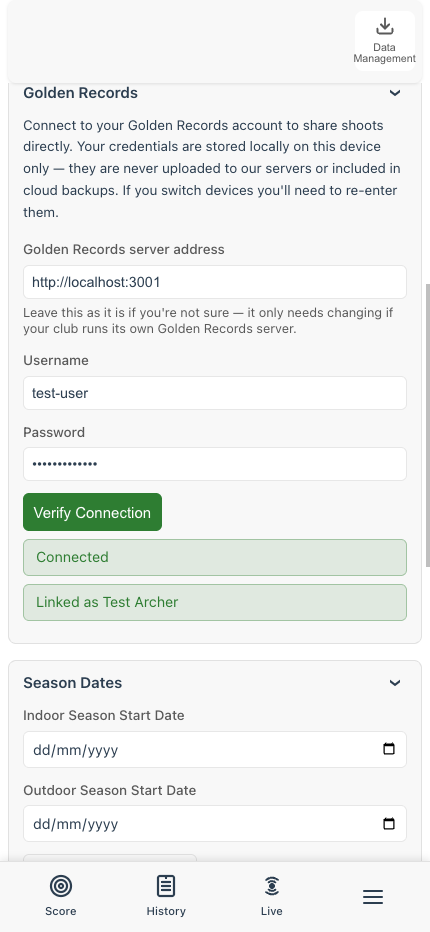
Head to the You page (menu → You), expand the Golden Records section, and fill in:
- Username and Password — your Golden Records login.
- Leave Golden Records server address alone unless your club runs its own server.
- Tap Verify Connection.
Fast will confirm the connection and link your Golden Records member profile. Credentials live only on this device — they're never uploaded to our servers or included in cloud backups.
Sharing a shoot
Once linked, open any completed shoot from History, tap Share, and you'll see a new Share to Golden Records option alongside the usual image and URL options.
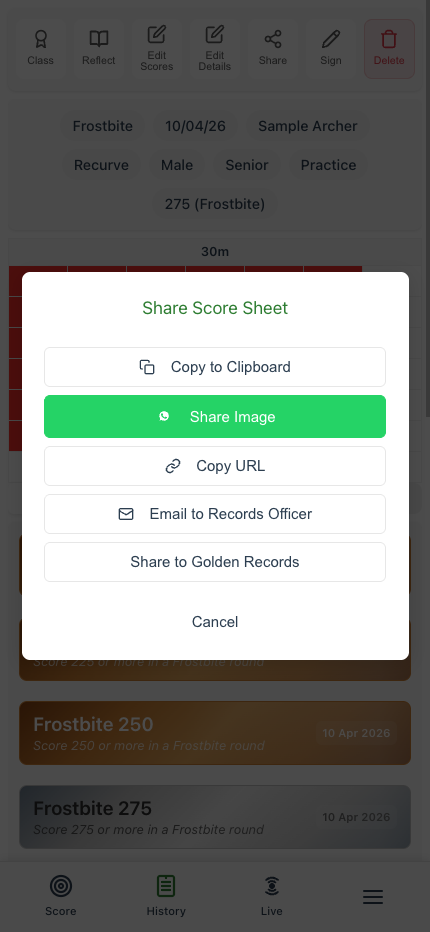
If Fast can match the round name exactly, the score is submitted straight away with a scoresheet image attached. Done.
When round names don't match
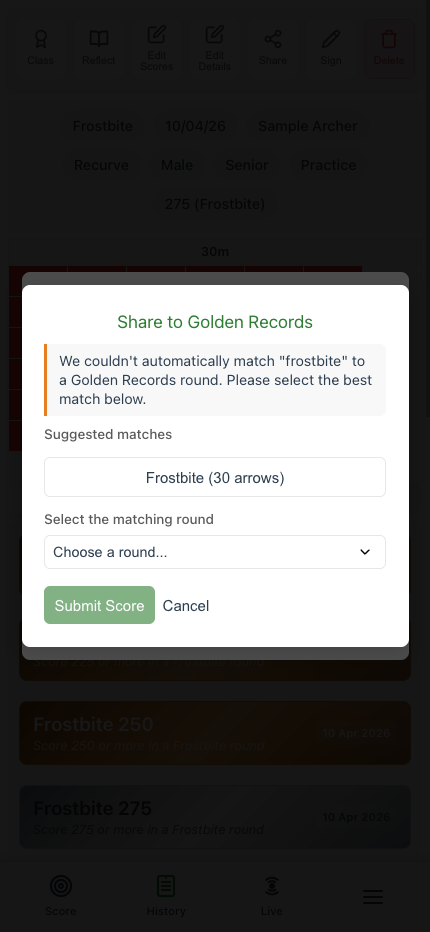
Golden Records sometimes names rounds slightly differently to Fast — Fast might call something frostbite while Golden Records has it as Frostbite (30 arrows), or Fast's wa 70m lives in Golden Records as WA 70/720.
When Fast can't be confident, it asks you to pick. The most likely matches appear as chips at the top so the right one is usually one tap away, but the full dropdown is there if you'd rather choose from the whole list. Fast never submits a fuzzy match without your confirmation — you have the final say.
Public Profile
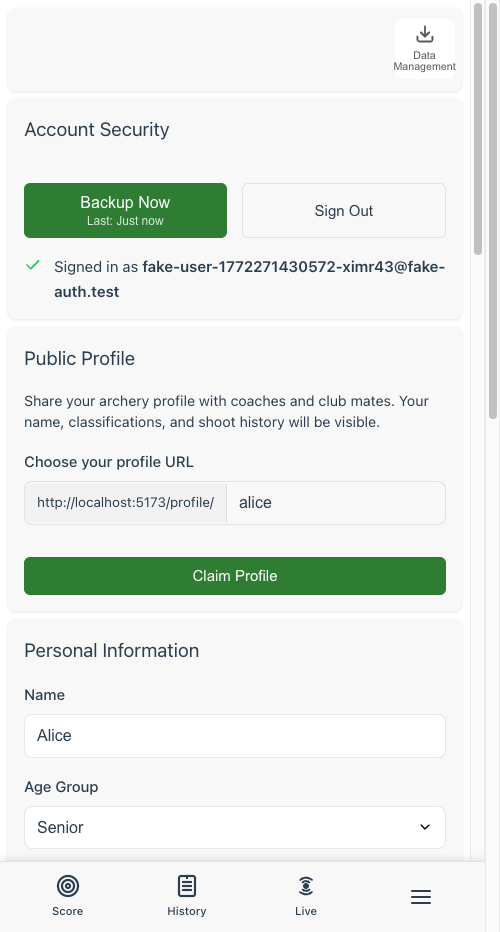
Public profiles let you share your archery progress with coaches, club mates, and friends. Anyone with your profile URL can see your name, bow type, classifications, and shoot history.
Claiming Your Profile URL
To claim your public profile:
- Sign in with Google on the Profile page
- Find the Public Profile section
- Enter a short, memorable slug (e.g. your name)
- Tap Claim Profile
Your profile will be available at fastarchery.co.uk/profile/your-slug.
Your Public Profile
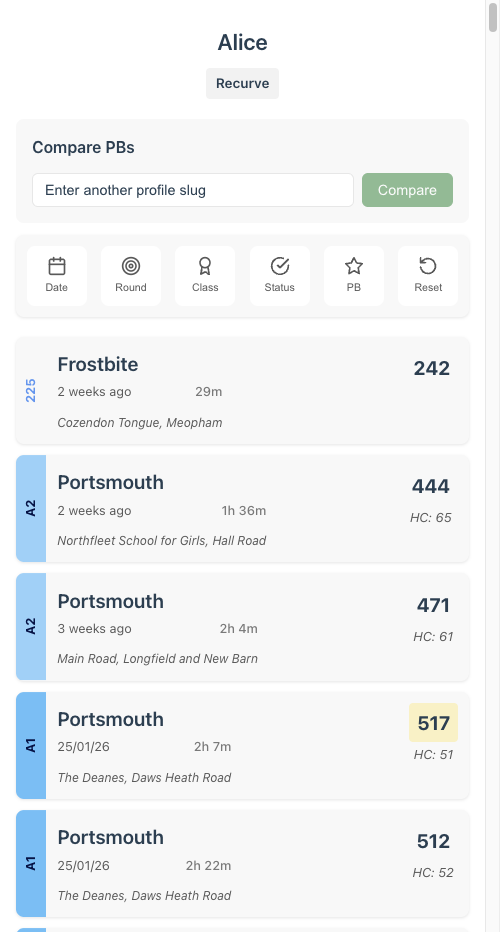
Your public profile page shows your name, bow type, and full shoot history. Visitors can filter your shoots by date, round, classification, status, and personal bests.
Comparing Profiles
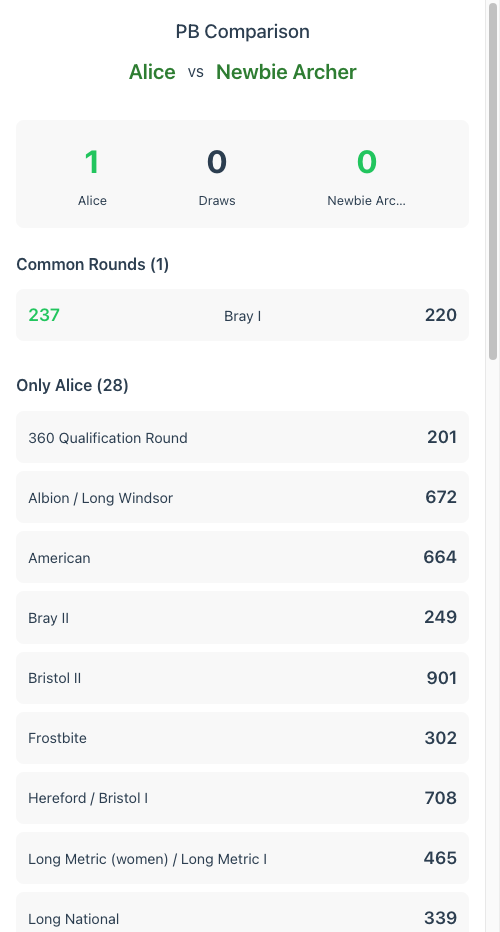
On any public profile page, enter another archer's slug and tap Compare to see a side-by-side comparison of personal bests. The comparison shows which rounds you both shoot, who has the higher PB for each, and an overall win count.
Live Shooting
Shoot together with friends and club mates and see each other's scores update in real time. One person creates a shoot session and shares the code; everyone else joins with that code.
Getting Started
Tap the Live tab in the bottom navigation to open the live shooting menu.
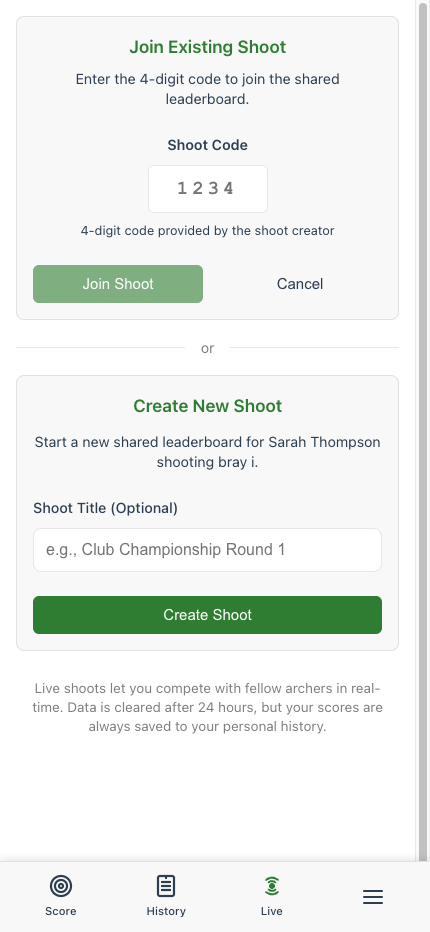
- Create New Shoot - Start a session and get a 4-digit code to share with others
- Join Existing Shoot - Enter the code someone shared with you
Everyone shoots their own round independently. You don't all need to be shooting the same round.
The Leaderboard
Once you're in a live shoot, you'll see a leaderboard that updates in real time as everyone scores their arrows.
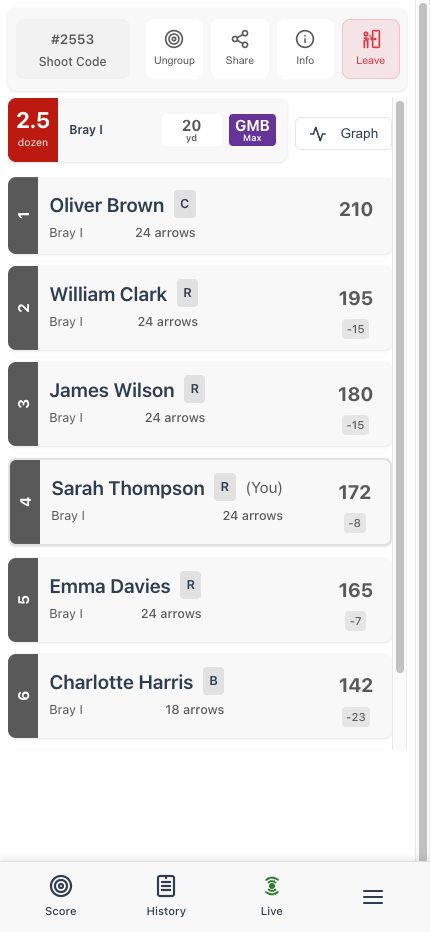
- Participants are ranked by total score
- Each entry shows the archer's name, bow type, round, arrows shot, and current score
- Your own entry is highlighted with (You)
- The score difference from the archer above is shown in red
Sharing the Code
Tap Share in the toolbar to send the shoot code to others. They can join from the Live tab by entering the 4-digit code.
Installation
Fast is a Progressive Web App (PWA), which means you can install it on your phone and use it just like a regular app - no app store required!
Installing on iPhone (iOS)
You can install Fast using Safari, Chrome, or Edge (iOS 17+).
- Open Safari and navigate to fastarchery.co.uk
- Tap the Share button (the square with an arrow pointing up)
- Scroll down and tap "Add to Home Screen"
- Tap Add in the top right corner
Fast will now appear on your home screen as an app icon. It works offline once installed!
Installing on Android
You can install Fast using Chrome, Edge, Firefox, Opera, or Samsung Internet.
- Open Chrome and navigate to fastarchery.co.uk
- You may see an automatic "Add to Home Screen" prompt - tap it!
- If not, tap the menu button (three dots in the top right)
- Tap "Add to Home Screen" or "Install app"
- Tap Add to confirm
Fast will now appear on your home screen alongside your other apps.
Data Management
Your scores, notes, and settings are stored on your device. Fast gives you full control over your data — you can export it to a file whenever you like, and restore it later if needed.
Getting There
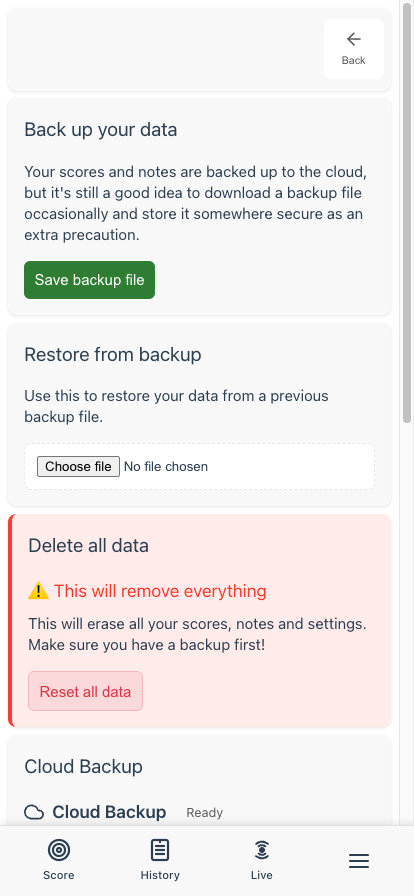
From the bottom menu, tap the menu button (☰) to open your profile page. Then tap the Data Management button in the top-right corner.
Exporting Your Data
Tap Save backup file to download all your scores, notes, and settings as a single file. The file is saved in a format called JSON — a standard format that other apps and tools can read, so your data is never locked in.
The file will be named something like archery-data-2025-06-15.json and saved to your device's downloads folder. Keep it somewhere safe — on your computer, in cloud storage, or email it to yourself.
Restoring from a Backup
If you need to get your data back — perhaps you've switched phones or cleared your browser — tap Choose File under "Restore from backup" and select your previously saved JSON file.
Settings & Preferences
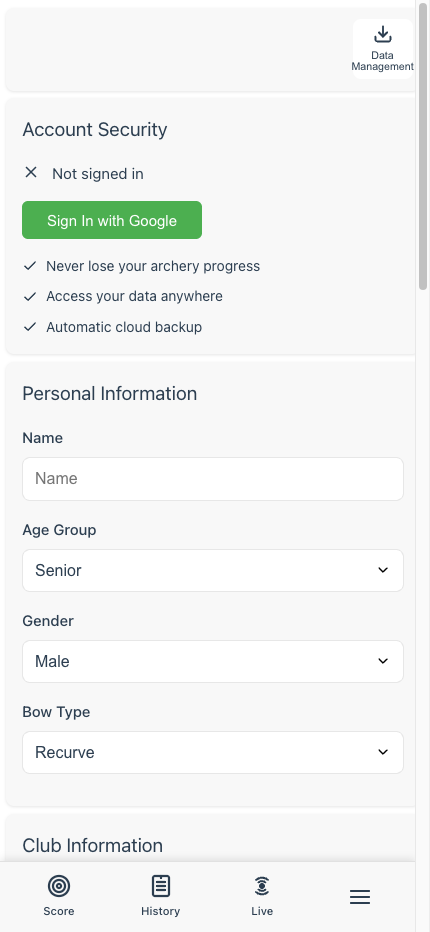
Customise Fast to suit your preferences. All settings are managed from the Profile page, accessible via the menu.
Account & Backup
- Sign in with Google - Sync data across devices
- Cloud backup - Automatic backup when signed in
- Data Management - Manual backup, restore, and export
Preferences
- App Theme - Light, dark, or match your device
- Constructive criticism - Get tips on improving
- Achievement popups - Celebration when you earn achievements
- Quick reflection - Post-shoot reflection prompts
- Knock colour - Customise arrow indicator colour
Season Dates
Set your indoor and outdoor season start dates. This affects classification tracking as classifications reset each season.